

Speed, pinpoint accuracy, and the rush of making that perfect jump are all signature aspects of surfing in Counter-Strike 2 (CS2). Surf is a fun and challenging mode, full of high-speed aerial acrobatics that will keep you on the edge of your seat.
Catch a wave of knowledge via our in-depth guide, as we explain what this popular experience is all about, how you can Surf in CS2, including basic gameplay tips, installing the best maps, and joining community servers.
Table of Contents
CS2 Surfing—What Is It?
There’s no shooting in Surf. It’s all about the movement; gliding from ramp to ramp through unique, sometimes colorful maps. Surfing in CS2 is a movement-based game mode, where players strafe and turn in a manner that helps them pick up speed and navigate angled ramps.
The goals are to complete a stage without falling off, and for the competitive players, beating a specific time. The mode became popular in the Counter-Strike: Source era, and grew in CS:GO thanks to a dedicated, passionate community. Enjoying a Surf map in CS2 isn’t just a refreshing break from Premier Mode—you can also improve your spatial awareness, resulting in a deeper understanding of physics in Valve’s Source 2 engine.
There is no official Surf mode in CS2. Instead, fans use community-created maps (more on this later) via the Steam Workshop. You can play alone or on custom servers, competing against like-minded individuals of various skill levels to set better times.
The Basics Of Surfing
At the highest difficulty levels, surfing movement can become incredibly complex. In CS2, it is the epitome of “easy to learn, difficult to master.”
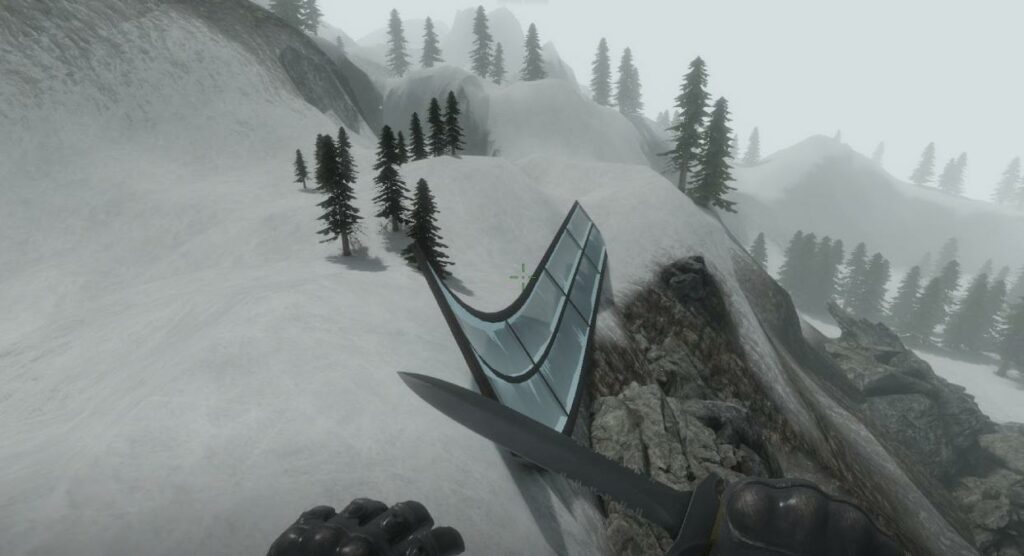
You’ll need to learn the basics first to glide across the ramps on a Surf map. There are only three basic rules to get started:
Don’t Touch W & S Keys
The forward momentum in surfing results from the angled surfaces of a ramp on which players glide. Once you start surfing, never press W or S again. W is the default key for “forward,” and S is the default key for “backward.”
If you press W, the “forward” command’s linear acceleration will ruin the smooth slide you’ve built up, causing you to slow down and fall off. Pressing the S key will push you down, effectively fighting against the physics of sliding. Only use the A & D keys!
“D Ramp A” Golden Rule
The golden rule for surfing in CS2 is “D Ramp A,” which may sound weird to a newcomer. However, it’s easy to understand. First, visualize the D key, then a Ramp with two identical sides making the shape of a triangle, then the A key. See the D Ramp A image? Good!
On the left side of a ramp, you must hold the D key to pick up momentum. Hold the A key on the right side of a ramp. There are exceptions on more challenging maps, but it’s a good starting point.
Keep Mouse Movement In Sync
While in the air, you can hold a strafe key (A or D) and gradually turn in the same direction with your mouse. Always have your mouse movement and strafe key presses in sync to pick up speed and stay in control. That means when you press A, you should move your mouse to the left; when you press D, move your mouse to the right. Master this “airstrafing” motion, and you’ll start climbing the CS2 Surf leaderboards.
Pro tips: Train yourself to look up when you need to slow down for a moment, or effectively transition between ramps. Set your mouse speed roughly 15% slower than you are used to in regular CS2. This will help you get used to the in-air turns, improving your surfing skills.
Here’s How You Can Start Surfing In CS2
With the basics of surfing in CS2 explained, it’s time to get started! Each Surf map provides users with unique experiences and various levels of challenges. Some are much tougher to complete than others, requiring dozens of hours of experience.
Best CS2 Surf Maps
With hundreds of community-created options, you should try many Surf maps to find your favorites. Below is a list of the ten best Surf maps to get you started, including links to their Steam Workshop pages.
- surf_utopia_njv
- surf_rookie
- surf_boreas
- surf_aquaflow
- surf_tiltberg
- surf_rocco_v2
- surf_kitsune
- surf_nyx
- surf_whiteout
- surf_beginner
Please note: Surfing in CS2 is not perfect. Some players have run into ramp bugs, so they recommend Counter-Strike: Source options. Valve consistently improves CS2, so gamers should try the best Surf maps listed above, testing the experience for themselves.
How To Install CS2 Surf Maps
To install the best CS2 Surf maps, and many others that could pique your interest, follow the steps outlined below:
- Launch Steam.
- Navigate to the CS2 page.
- Select “Community” and click “Workshop” from the drop-down menu.
- Type “Surf” in the search bar to bring up a lot of maps.
- Alternatively, you can specify the precise names we’ve listed in the previous section.
- Find the maps you want to play on, and click “Subscribe.”

To simplify the process, you can head directly to the CS2 Workshop on Steam. Restart CS2 for all the maps to show up. Once you are subscribed to a map, it will automatically download and install.
Joining CS2 Surf Servers
It is highly recommended that you play on CS2 servers instead of alone. Custom servers offer players essential mods built in, such as a timer, velocity meter, and in-game voice chat. Use the latter to speak to experienced surfers, get tips, and share insights.
You can start today by using the built-in Community Server Browser. Follow the steps outlined below to find Surf servers:
- Launch CS2 and click on the Play button in the top-middle of your screen.
- Next to “Workshop Maps,” you’ll see a globe icon. Select it to open the Community Server Browser.
- CS2 will minimize while the Community Server Browser opens.
- Type in “Surf” and select criteria such as preferred latency threshold.
- Wait for the Community Server Browser to complete the search. It can take 15 to 30 seconds.
- Select one of the Surf server options and click the blue “Connect” button.
You can use three third-party custom server browser websites to jump into Surf experiences with ease:
While you can log into these third-party websites with your Steam account credentials or create a new account with them, this is not always necessary.
You can find the IP addresses of servers on these pages, and use the CS2 console command “Connect” followed by the IP address and port. For example, to join cybershoke.net’s popular surf_utopia_njv server, launch CS2, open the command console, and paste in the following line: “connect 45.92.38.54:27031“
Please note: Thunderpick is not responsible for any issues that could occur from using third-party websites to play on Surf servers. While we do diligent research to ensure the alternatives mentioned are above board, we cannot guarantee an issue-free experience.
CS2 Surf Commands
If you want the correct virtual environment factors for surfing in CS2 on your server, use the following commands and their respective values.
- sv_cheats 1
- sv_accelerate 10
- sv_airaccelerate 800
- sv_maxspeed 620.0
- sv_maxvelocity 7200.0
- sv_enablebunnyhopping 1
- sv_gravity 800.0
- sv_staminamax 0
- sv_staminajumpcost 0
- sv_staminalandcost 0
- sv_staminarecoveryrate 0
- sv_accelerate_use_weapon_speed 0
Public Surf servers already have these commands active. However, if you play solo, you may need to adjust these values. If bots appear in your game, get rid of them with “bot_kick“.
Catch A Wave Of Opportunities
It’s a thrill to Surf in CS2, explore new maps, set time records, and improve with each attempt. Our guide should help newcomers leap in and enjoy the unique experience alone or with others. However, joining the Surf community isn’t the only exciting wave of opportunity you can catch!
Check out our CS2 betting page, boasting every top-tier CS2 esports event. Watch the best players in the world compete for huge prize pools, and take the excitement to the next level by placing wagers on live matches using your favorite cryptocurrencies. Good luck, and have fun!
Always practice Responsible Gambling and check out our latest promo offers and boosts. T&Cs apply. 18+ to play.