
If you’re serious about reaching Immortal or finally escaping the trenches, you know that smooth game performance is non-negotiable. The right Dota 2 launch options can crank up frame rates, eliminate stuttering, and silence background processes that quietly cost you those all-too-important team fights.
In this guide, we’ll explain Dota 2’s launch options, how to set them up, and the best configurations to maximize performance from any setup.
What Are Dota 2 Launch Options?
Launch options refer to a set of pre-startup instructions that tell Dota 2 how it should behave, perform, or look before it even opens. Technically speaking, they’re command-line strings or “engine flags” that override the game’s default settings at launch.
Most launch options are preceded by a dash (-) and are intended to initialize custom startup configurations, like skipping intros, forcing windowed mode, or prioritizing system resources. However, they can also include console commands to automate certain in-game settings.
While there are many reasons Dota 2 players use launch options, it’s almost always to boost their performance or to access menu options that aren’t typically available in the game client.
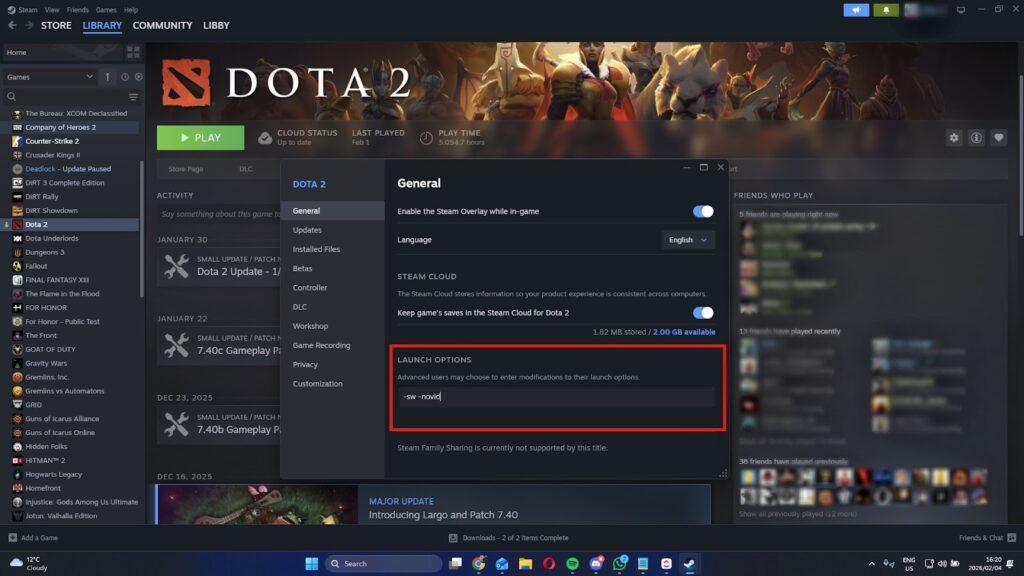
How To Set Dota 2 Launch Options
Here’s how to configure your Dota 2 launch options:
- Launch Steam
- Click on the “Library” tab
- Right-click on Dota 2
- Go to “Properties” > “General”
- Enter any launch command into the “Launch Options” text box
- Close the window
Tip: You can use multiple launch options at once. Simply add each command in the box and separate them with a space.
Best Dota 2 Launch Options For Better Performance
While there are no “technically” best Dota 2 launch options, the following commands can help you squeeze the most performance out of your hardware, no matter how rough it is. This is achieved by streamlining startup and eliminating features you don’t actually need.
| Command | Description |
-novid | Skips the intro video. This reduces initial memory load and helps you reach the main menu faster, without rendering unnecessary video files. |
-high | Forces your CPU to prioritize Dota 2 over background processes. This can help stabilize your frame rate (FPS) when other apps are open. |
-map dota | Loads the map at startup. This slightly delays startup, but prevents stuttering or crashing when you join a match. |
-nojoy | Disables joystick/controller support. This frees up a small amount of RAM that was reserved for listening for controller inputs. |
-novr | Disables virtual reality mode. This blocks VR-related drivers and libraries, freeing up memory and processing power. It also fixes the Dota 2 “black screen” issue on some systems. |
+map_enable_portrait_worlds 0 | Disables the 3D hero showcase and background maps on the home screen, significantly reducing GPU and CPU usage. It can cause UI bugs, though, so use it with caution. |
+fps_max [-] | Sets the FPS limit to a predefined value. This prevents your GPU from working at max capacity to render frames you can’t see, keeping your PC cooler and more stable. |
-vulkan | Enables Vulkan support. If you have a relatively modern but “weak” GPU, Vulkan can often provide better CPU multi-threading than DirectX 11. |
-sw or -windowed | Launches the game in windowed mode. For some PCs, this can be less taxing on the system than forced full-screen mode. It’s also smoother if you Alt+Tab, especially if you have multiple monitors. |
-noborder | Launches the game in borderless window mode. |
Note: This list is not exhaustive. Valve also frequently updates the game engine, in which case some launch options may be modified, removed, or stop working. Use them at your own risk.
Best Dota 2 Launch Options For Low-End PC
If your PC struggles to play Dota 2, it may need an upgrade. In the meantime, though, you can copy and paste the following string into your launch options to free up some overhead:
-novid -high -map dota -nojoy -novr +fps_max 60
Although some PCs perform better in windowed mode, it’s worth at least trying to run Dota 2 in exclusive full-screen mode (-fullscreen). It minimizes input lag and stuttering by giving the game full control over your display resources, effectively bypassing the need to render your desktop.
If that doesn’t work, you can also force Dota 2 to run at a reduced resolution using the -w and -h (e.g., -w 1280 -h 720) commands to instantly gain a few extra frames, though it won’t make your game look very pretty.
How To Reset Dota 2 Launch Options
If you’re encountering any problems with your game, you can easily reset your Dota 2 launch options by following these simple steps:
- Launch Steam
- Click on the “Library” tab
- Right-click on Dota 2
- Go to “Properties” > “General”
- Delete any text in the “Launch Options” text box
- Close the window
After removing the commands from the Dota 2 launch options text box, your game will launch with the default configuration. You can also use the -autoconfig command to reset any settings that might make the game unplayable or crash unexpectedly. Here’s how to do it:
- Return to the “Launch Options” menu
- Type
-autoconfiginto the text box - Close the window
- Launch Dota 2 and immediately close it afterward
- Remove
-autoconfigfrom the “Launch Options” section
This will remove any saved custom settings and restore the default values for your specific hardware configuration.
FAQs
Looking for a quick fix? Find answers to the most frequently asked questions about Dota 2 launch options below.
How do I remove Vulkan from launch options?
To remove Vulkan, simply delete -vulkan from your Dota 2 launch options. You can also replace the command with -dx11 to force the game to use a different API instead.
Can launch options change game resolution?
Yes. You can force Dota 2 to use a specific resolution using the commands -w [value] and -h [value]. For example, entering -w 1920 -h 1080 will launch the game in 1080p. It’s quite handy if your game crashes when you try to launch at an unsupported resolution.
What does “-novid” do in Steam?
The -novid command disables the Valve intro video that plays every time at launch, allowing you to load into Dota 2 faster.
How to launch Dota 2 in windowed mode?
To launch Dota 2 in windowed mode, simply add the -windowed command to your Dota 2 launch options.