
Counter-Strike 2 (CS2) may be a Windows-first game, but that doesn’t mean Mac gamers are completely locked out. With the right workaround, you can still click heads on Mac.
This guide will break down every viable method to play CS2 on macOS, from compatibility layer solutions to cloud-based streaming. We’ll also discuss what you can expect in terms of performance and share some tips to get the best possible experience from your Apple device.
Table of Contents
Can You Play CS2 On Mac?
Yes, but only with workarounds. Valve ended macOS support when Counter-Strike: Global Offensive (CS:GO) transitioned to CS2 on Sept. 27, 2023. The move to the Source 2 engine and Vulkan API removed macOS compatibility entirely, making CS2 (and the now-retired native CS:GO client) unplayable on Mac.
Valve also cut its lifeline to older hardware, including DirectX 9 and 32-bit operating systems, noting that these comprised “less than one percent of active CS:GO players.” That said, it’s not impossible to play CS2 on a Mac.
Besides the “legacy” version of CS:GO, common workarounds involve:
- running a compatibility layer (e.g., third-party apps like Whisky),
- setting up a Windows partition via Boot Camp on older Intel-based Macs, or
- streaming the game through a cloud-gaming service.
Methods To Play CS2 On Mac
Below are a few workarounds for playing CS2 on a Mac. Each option has its trade-offs, but they will allow you to access the Windows build of CS2 and join matches as if you were on a PC.
Disclaimer: CS2 is not officially supported on macOS. The workarounds outlined below are for informational purposes only, and any methods used are performed at your own risk.
Local Compatibility Layer Solutions
The simplest and most common way to play CS2 on Mac is by using a compatibility layer. Apps like Whisky and CrossOver use the open-source Wine framework and Apple’s Metal graphics API to run self-contained Windows file systems that run Windows applications on macOS via translation/compatibility.
While most local compatibility layers are relatively easy to set up, their performance can vary based on your hardware. This is due to the additional disk space, system memory, and processing power required to run CS2 through a compatibility layer.
As a result, you can expect lower frame rates and occasional stuttering and tearing compared to native Windows setups, so you might need to adjust your graphics settings and launch options (e.g., -high, -novid, and -nojoy) for better performance and smoother gameplay.
How To Install Whisky
To set up Whisky on Mac, follow these steps:
- Download Whisky on GitHub.
- Drag it into the Applications folder.
- After launching, it will set up Rosetta, Wine, and Apple’s Game Porting Toolkit. Follow the prompts.
- Click the “+” icon in Whisky to create a new bottle (this is your virtual Windows environment).
- Select Windows 10 when prompted to choose a version.
- Download the Steam installer for Windows and install it inside that bottle.
- In the bottle settings, enable DXVK.
- Install Counter-Strike 2 on Steam.
Note: Whisky is no longer actively maintained by the developers. A recent CS2 update also broke Mac compatibility on Whisky, causing the game to fail at launch. Some users report restoring functionality with KegWorks, so look for community guides (e.g., forum threads). Use at your own risk.
Virtualization And Partitioning (Boot Camp)
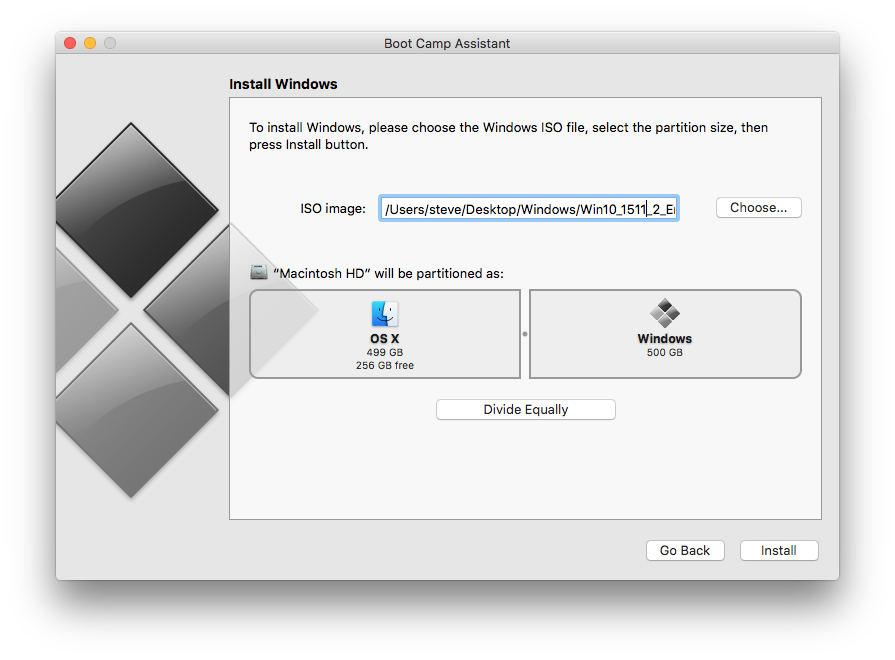
Another option is to use Boot Camp to install and run a full-fledged Windows operating system next to your existing macOS installation. This is done by partitioning your drive for dual-boot. By booting directly into Windows on Mac, you can then install and play CS2 (or other games) as if you were on a PC.
However, Boot Camp is only available for Intel-based Macs, so models with Apple Silicon chips (i.e., M-series) are not supported. It’s also complex to set up and requires dedicating a significant portion of your disk space to Windows, as well as switching between operating systems at boot-up.
Alternatively, you can use virtual machine software, such as VMware Fusion or VirtualBox (free), to emulate Windows within macOS. The only trade-off is that your performance will suffer since your Mac’s resources will be shared between the systems. For this reason, Boot Camp is the better option.
Cloud-Based Solutions
Cloud gaming platforms are a great, hassle-free option for Mac players who don’t want to deal with technical installations. For example, services like NVIDIA GeForce NOW, Boosteroid, Shadow, and CloudDeck allow you to play CS2 directly through your browser or app.
Better yet, all the heavy lifting is done remotely. The only requirement is a stable, high-speed internet connection for near-native gaming performance.
Legacy CS:GO Version
Although it’s technically not a workaround, Valve does offer a “legacy” version of CS:GO as a kind of “make-good” to those who cannot launch CS2 with their current hardware. This version has all the features of CS:GO, including demo footage, inventory, and workshop maps, but no official matchmaking.
Since Valve stopped rolling out updates for the legacy build on Jan. 1, 2024, certain functionality that relies on compatibility with the Game Coordinator may have degraded or ceased to function, as Valve warned.
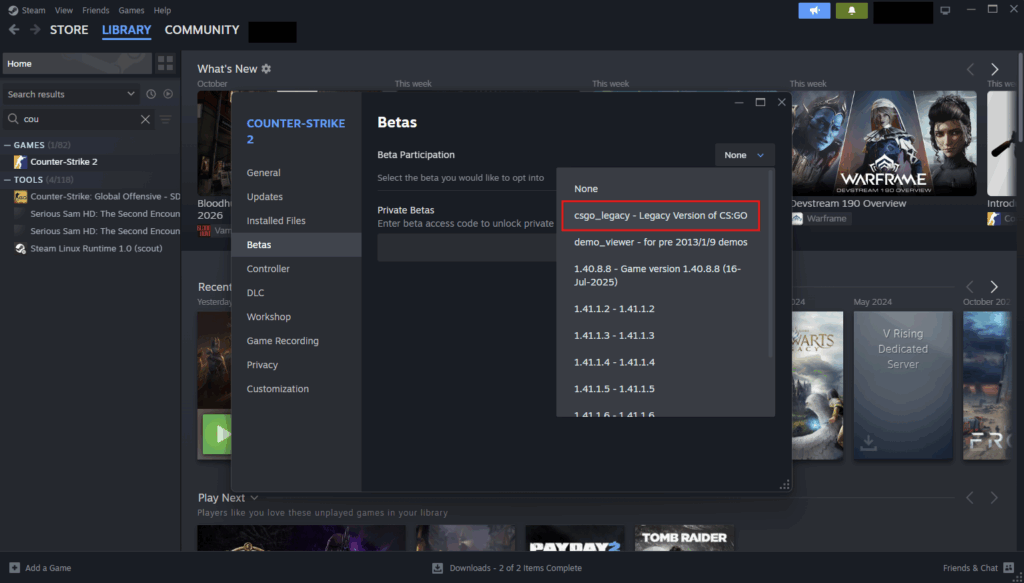
To install it, follow these steps:
- Launch Steam.
- Go to your Library.
- Right-click on Counter-Strike 2 → Properties → Betas.
- Select “csgo_legacy – Legacy Version of CS:GO” from under the Beta Participation menu.
- After downloading and installing, select “CSGO Legacy” when prompted at launch.
What To Expect: Performance And Experience On Mac
Most modern Macs, particularly models with an Apple Silicon chip (M2 or later), should be able to play CS2 with respectable frame rates.
MacBook Air vs. MacBook Pro: Gaming Performance
The MacBook Air (M4) features a 10-core CPU and 10-core GPU, which enables it to handle compatibility layers like Whisky perfectly fine at moderate to high settings. However, its fanless cooling limits gaming performance over extended periods, resulting in occasional frame drops when the chip heats up.
By contrast, the MacBook Pro (M5) offers noticeably better performance. While it also utilizes a 10-core CPU and a 10-core integrated GPU, it benefits from active cooling and higher memory bandwidth (153 GB/s vs. 120 GB/s). This lets it maintain consistent frame rates, even under load.
Beyond that, the 120Hz XDR display and improved thermal capacity mean gameplay will feel a lot more responsive, which competitive players will immediately notice. Together, the MacBook Pro (M5) is hands-down the best option for playing CS2 on a Mac.
| Spec / Feature | MacBook Air (M4) | MacBook Pro (M5) |
| Display | 13.6” Liquid Retina (500 nits, 60Hz) | 14.2” Liquid Retina XDR (1000 nits sustained, 120Hz ProMotion) |
| Chip | M4 (10-core CPU, up to 10-core GPU) | M5 (10-core CPU, 10-core GPU) |
| RAM | Up to 32GB unified | Up to 32GB unified |
| Storage | Up to 2TB SSD | Up to 4TB SSD |
| Battery Life | Up to 18 hours | Up to 24 hours |
| Cooling | Fanless (passive) | Active cooling (dual fans) |
| Ports | 2× Thunderbolt 4 (USB-C) | 3× Thunderbolt 4 (USB-C), HDMI, SDXC slot |
| Weight | 1.24 kg | 1.55 kg |
| Price | From $999 | From $1599 |
| Suited For | Casual play | Competitive play |
Tips To Improve Your CS2 Experience On Apple Devices
- Use an external gaming mouse and keyboard for faster, more responsive gunplay.
- Close unnecessary background apps to free up RAM and CPU resources before launching CS2.
- Optimize your CS2 settings (e.g., lower resolution or disable high-detail effects) to boost and stabilize your frame rate.
- Plug your Mac into a power outlet while playing CS2 to avoid CPU throttling and maintain peak performance.
- Use a wired internet connection instead of Wi-Fi for a more stable connection.
Frequently Asked Questions: CS2 On Mac
Here are a few frequently asked questions (FAQs) about playing CS2 on Mac.
Is There A macOS Version Of CS2?
No, there is no native macOS version of CS2. It runs exclusively on Windows, SteamOS, and Linux systems.
Why Isn’t There Official Mac Support?
Valve ended Mac support for CS2 when it transitioned to Source 2 and Vulkan, both of which are incompatible with macOS. The limited Mac player base and Apple’s transition to M-series chips and Metal graphics also made having a dedicated version impractical.
Are These Workarounds Safe And Reliable?
Yes. All the workarounds we discussed, including local compatibility layers, virtualization, and cloud gaming, are generally safe to use and are widely used by Mac gamers. Aside from occasional troubleshooting, the only trade-offs are in performance and stability, not security.
Can I Use Newer Mac Models To Play CS2?
Yes, Mac models with Apple Silicon M-series chips can run CS2 via workarounds. Their efficient architecture and improved Metal graphics compatibility make them far better suited for gaming than older Intel-based models.
Do I Need A Lot Of System Resources?
It depends on your Mac model. The CS2 system requirements for Windows aren’t demanding for most modern setups. However, running it with compatibility layers adds extra overhead (e.g., additional memory, storage, and processing power) compared to running it natively.
Will CS2 Ever Be Released Natively For Mac?
There are no official plans to release a macOS version of CS2 in the foreseeable future. Valve has confirmed that CS2 will remain exclusively available for 64-bit versions of Windows, SteamOS, and Linux.
Always practice Responsible Gambling and check out our latest promo offers and boosts. T&Cs apply. 18+ to play.