
In the middle of an intense battle on the Counter-Strike 2 (CS2) servers, with bullets flying and the bomb ticking away, your view suddenly snaps back like an elastic band, almost as if you’ve travelled back in time a few seconds. That’s what CS2 rubberbanding feels like, and it’s terrible.
With our complete guide to fixing CS2 rubberbanding, you’ll put the issue to rest. We’ll discuss the problem from all angles, including external factors that may be causing it, and share several fixes to try when troubleshooting.
Please note: Thunderpick is not responsible for any issues that may occur if you follow any of the steps outlined in this guide.
What Is CS2 Rubberbanding? Explained
Rubberbanding manifests itself in two ways. First, you may be running through the “monster” tunnel on Overpass, but just as you get to the other side, your player model viewpoint snaps back to a previous position from before you entered the tunnel.
The second way rubberbanding can present itself is when you see enemy players or teammates “teleporting” to different locations. It’s like losing some time during gameplay, which makes it incredibly difficult to enjoy the game or remain competitive in any realistic way.
It’s almost as if your player model and others on the server are connected to elastic bands that snap back periodically.
Rubberbanding occurs due to a temporary loss of communication between your PC and the CS2 server. It is entirely a network-related issue, and multiple troubleshooting steps may help, so let’s take a look.
How To Check Ping & Jitter In CS2
To fully understand how your network currently operates, including whether there’s any packet loss to the CS2 servers, misdelivery of packets, or high latency, you’ll want to get a real-time overview of the situation.
Follow the steps below to enable CS2 telemetry settings to check ping (latency) and network jitter:
- Launch Steam.
- Update CS2 if necessary and launch.
- Click on the settings icon (Cogwheel).
- Navigate to the “Game” tab.
- Select “Telemetry”
- Select “Always” from the drop-down menus of the four ping and jitter-related options.
- Keep the network tick miss rate at five (5). Lower gradually to check for any errors.
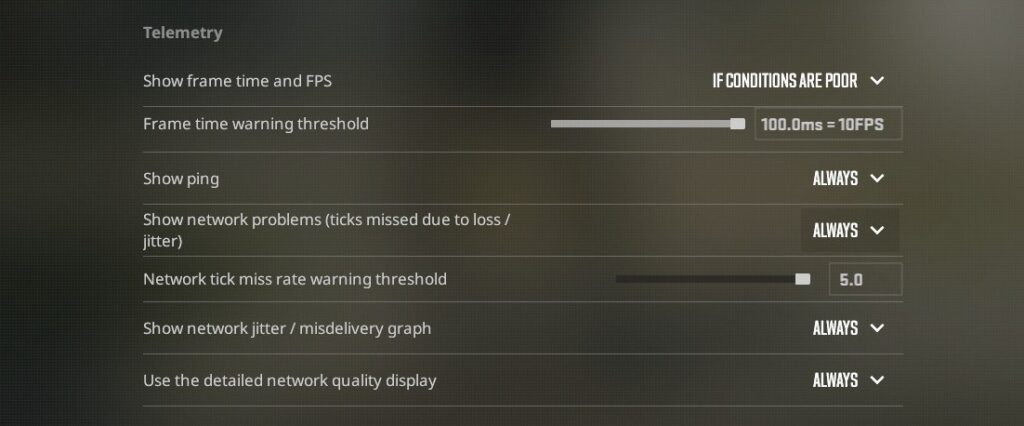
In all the options above, you can also select “If Conditions Are Poor” from the drop-down menu, but for testing purposes, we recommend using “Always.”
Play a game via matchmaking, preferably in a non-serious CS2 game mode, such as Deathmatch, rather than CS Premier or Competitive.
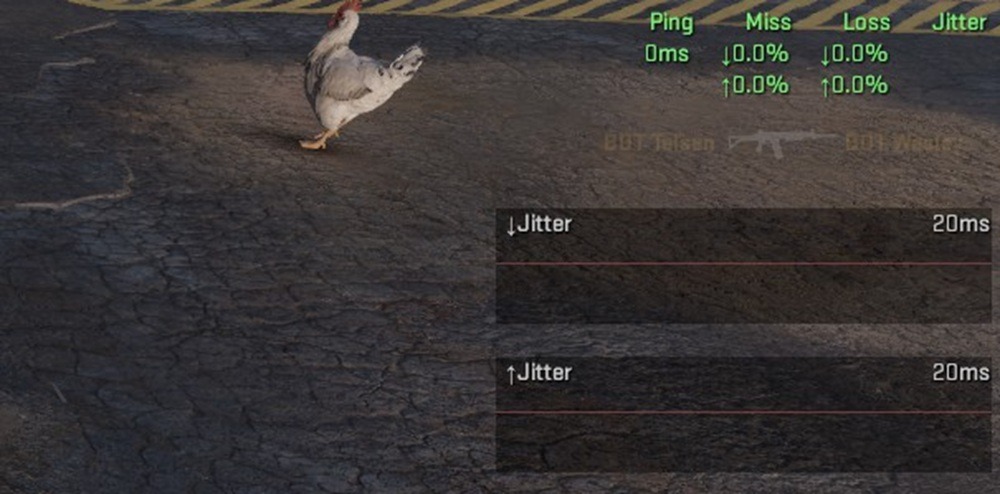
On the top right-hand side of your screen, as per the image above, you’ll see latency to the server (ping), as well as jitter graphs. If any packet loss or network misdelivery occurs, it’ll show up on the jitter graphs, and your ping value will spike.
If your ping goes above 100ms, you see red spikes in the “jitter” graphs, or both occur simultaneously, you’ll know for sure there’s a network-related problem to tackle.
External Issues That Cause Rubberbanding
External issues beyond your control could cause rubberbanding in CS2. That means no matter what fixes you employ, the rubberbanding could persist. Below are some examples of external issues and what you should do to fix them.
ISP Troubles
Your Internet Service Provider (ISP) may be experiencing a network issue. We recommend checking their website for a “Status” page to see if there’s any downtime or planned maintenance. Contact your ISP to check their network status.
Bad Actors
The root cause of severe rubberbanding, experienced by everyone on the server, could be “bad actors.” For example, a group of hackers may cause issues for Valve and Steam-related services, or target a service provider that hosts the servers you are currently playing on. If this is the case, waiting for a few hours should resolve the issue.
Overloaded Servers
In rare instances, Valve’s servers may be strained by an influx of users and, in extreme cases, go down briefly. We recommend checking the third-party SteamStat.us page to ensure you always have the latest information. In the case of overloaded servers, it’s often best to wait a couple of hours and check back. The issue should resolve itself.
If external issues aren’t the root cause of your CS2 rubberbanding, it’s time to roll up those sleeves.
Easy CS2 Rubberbanding Fixes To Try First
Before we get into the advanced fixes, try these more straightforward solutions.
CS2 Matchmaking Settings
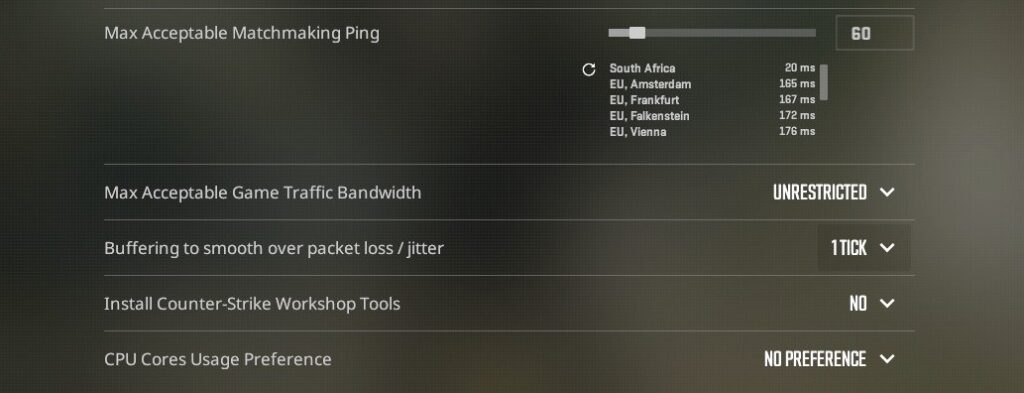
First and foremost, there are a few in-game settings that could help alleviate rubberbanding. Simply navigate to the “Game” tab in the CS2 settings menu and set your “Acceptable Matchmaking Ping” value lower.
We recommend 60, but if you want the smoothest possible option, you can go as low as 25. These values could increase your matchmaking search time because the system looks for relevant matches within 60ms.
Next up, choose “Unrestricted” under the Max Acceptable Game Traffic Bandwidth, and set Buffering To Smooth Over Packet Loss / Jitters to “1 Tick.” The latter setting could slightly increase your overall in-game ping, but alleviate rubberbanding.
Turn It Off And Back On Again
Just like they said on The IT Crowd (a comedy show that first aired in February 2006), one of your first troubleshooting steps should always be: turn it off and back on again. This includes closing CS2 and Steam, restarting your PC, and your router.
Use A Wired Connection
For the best possible online gaming experience, connect your PC to the router with an Ethernet cable instead of Wi-Fi. Ethernet cables ensure the highest speeds, the most stability, and aren’t affected by external signals such as weather. Also make sure someone on your network isn’t hogging all the bandwidth via their phone, tablet, or gaming device.
Uninstall And Reinstall CS2
You could go so far as to uninstall and reinstall Steam. With the power of modern PCs, reinstalling both shouldn’t take more than an hour, max! If you don’t want to completely uninstall the game, but still want to check the installed files, use Steam’s “Verify Integrity of Game Files” option. Just right-click on CS2, select “Properties,” and choose the aforementioned option via the “Installed Files” tab.
Check For Background Downloads
Via your Windows search bar, type in “Resource Monitor,” and check if there are any programs in the background using a hefty amount of bandwidth. Close any open programs, and while you are at it, ensure that your PC isn’t downloading any big files or updating.
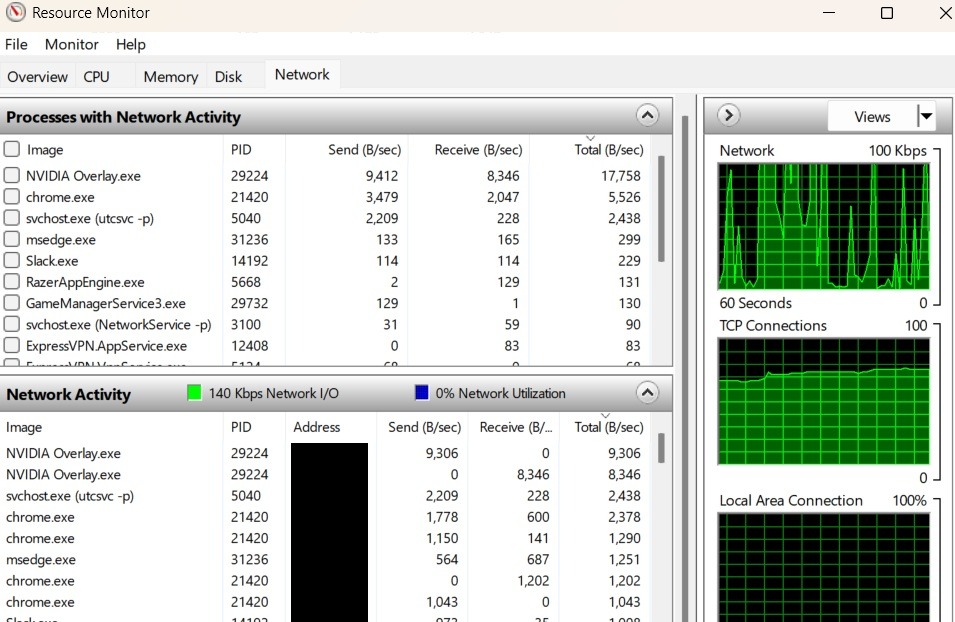
Still experiencing rubberbanding? No problem! Let’s move on to the advanced fixes.
Advanced CS2 Rubberbanding Fixes
There are a few more technical fixes you could try that require a bit of tinkering with your Windows or hardware settings. Before you jump in, please first go through all the easy fixes and ensure that it’s not an external factor causing rubberbanding.
Check for network issues outside of CS2/Steam by opening Command Prompt in Windows, then typing “ping google.com -t” and pressing Enter. You’ll see constant pings to the Google servers until such time as you press “Ctrl + C.” From here, you can see if there’s any packet loss or ping discrepancies. If there is, try some of these advanced fixes for network issues.
Reset Your Network Adapter
Open Command Prompt and run the following commands, pressing Enter after each one and waiting for it to complete before moving on to the next.
netsh int ip resetnetsh winsock resetipconfig /flushdns
These commands effectively reset your Windows network adapter. If the commands do not work, you may need to run the Command Prompt program with administrative privileges.
Router QoS Adjustments
Many routers have highly technical, but sometimes effective, Quality-of-Service (QoS) features to tinker with. The goal is to give gaming traffic (such as Steam and CS2) a higher priority.
Changing QoS settings on your router is delicate, so if you plan to do it, we recommend consulting your router’s manual or your ISP’s tech support to walk you through the process. While inside your router settings, also consider updating its firmware.
Scan For And Remove Malware
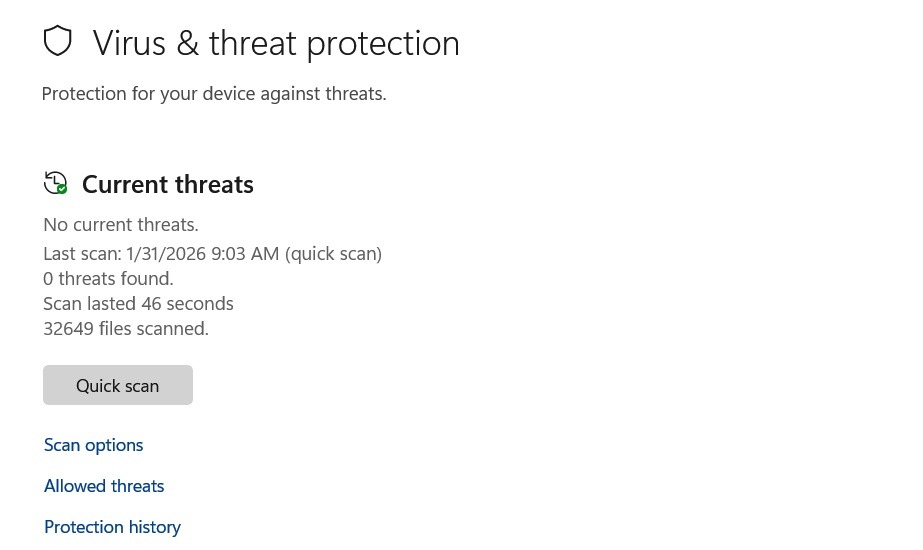
On Windows 11, you can simply use the search function to find “Virus and Threat Protection.” From here, you can do a quick scan for any viruses or malware. Sometimes, these intrusive programs can hog all the available bandwidth and cause latency spikes.
If it finds a threat, choose to either quarantine or remove the threat remove from your system. We highly recommend searching for the threat by name and following instructions from trusted sources. Alternatively, contact an IT professional.
FAQs About Rubberbanding In CS2
For the sake of crossing all the t’s and dotting all the i’s, we’ve compiled a handful of frequently asked questions and answers about rubberbanding in CS2.
Can I Contact Valve If Rubberbanding Persists?
If you’ve exhausted all options and rubberbanding still persists in CS2, you could contact the developer. Reach out to Valve by creating a Steam support ticket.
Can Other PC Hardware Cause Rubberbanding?
Non-network hardware, such as a GPU, CPU, RAM, or SSD, can’t cause rubberbanding. However, these PC components (or software) can cause FPS drops. Learn more in our complete guide to fixing stuttering in CS2.
Does cl_updaterate 128 Console Command Still Work?
Many guides you’ll come across still recommend using CS2 console commands such as “cl_updaterate 128” or “cl_interp_ratio” to fix network-related issues. That’s incorrect, as these commands now do nothing. CS2 uses a 64-tick sub-tick system that cannot be changed, and cl_interp_ratio is handled by the in-game setting “Buffering to smooth over packet loss.”
What’s A Good Ping In CS2?
Anything below 60ms is considered decent, while 20ms is excellent. If your ping goes above 100ms, it will adversely affect your performance in-game.
Should I Play CS Premier While Rubberbanding?
No, it is not recommended to play in any competitive game mode while experiencing rubberbanding. It could lead to an uncharacteristically poor performance, which in turn negatively impacts your teammates.
Always practice Responsible Gambling and check out our latest promo offers and boosts. T&Cs apply. 18+ to play.