

Packet loss occurs when data sent between your PC and the Counter-Strike 2 (CS2) servers doesn’t arrive, and it can be brutal! Even small amounts can ruin your entire game, affecting everything, including hit reg, movement, positions, utility usage, and even sound cues. So, how can you fix it? In this guide, we’ll go over a few ways of How To Fix Packet Loss In CS2. We’ll also discuss some telltale signs of how to spot it and highlight the biggest culprits.
Table of Contents
Is There A Way To Fix Packet Loss In CS2?
Absolutely. It may feel like an impossible task, but you can fix high packet loss in CS2. It usually comes down to two things: your internet connection (this is often the biggest culprit) and your hardware setup. Both of these factors can be easily resolved with a few adjustments.
Sometimes the issue isn’t on your end, but rather an overloaded server (common after major updates) or a temporary outage. In such cases, the only thing you can really do is wait it out. To verify if the issue is on Valve’s end, you can go to SteamDB to see server loads or reported downtime.
How To Fix Insanely High Packet Loss In CS2
If the problem is on your side, then you’ll have to get your hands dirty. Many of the solutions below aren’t entirely foolproof, but they can fix problems of high packet loss in CS2. These are the most common steps How To Fix Packet Loss In CS2.
Optimize Your Network
It sounds simple, but switching to a wired Ethernet connection can drastically improve your network stability. Wi-Fi signals not only weaken with distance and through walls, but are easily disrupted by neighboring devices and overlapping networks (especially on crowded 2.4 GHz bands).
Ethernet avoids that by offering a direct, interference-free link to your router. If you’re on a shared network like at university, you almost certainly run into high packet loss and lag spikes in CS2 matches. This is due to network congestion, and you’re probably better off switching networks entirely!
Pro Tip: While it doesn’t always work, rebooting your router or updating outdated network drivers can also help.
Close Background Apps
Background apps can also cause high packet loss in CS2, especially big downloads like Windows Update (ugh), streaming video content, or syncing data to the cloud (we’re looking at you, OneDrive). These programs strangle your bandwidth, leading to lag and dropped packets.
If you’re on a Windows PC, you can use the built-in Task Manager (accessible by pressing Ctrl + Shift + Esc) to spot and close problematic apps running in the background. Otherwise, you can run a traceroute or use third-party tools like PingPlotter to see exactly where packets are being dropped.

Fix Poor Routing
Poor routing occurs when your internet traffic takes an inefficient or unstable path to reach the game servers. For example, instead of going directly from you to Valve, your data may get routed through slow, overloaded, or distant nodes. The result is high ping, jitter, desync, and packet loss.
You can fix this by changing your DNS to a faster provider like Cloudflare (1.1.1.1) or Google (8.8.8.8) to speed up the initial handshake. Another option is to use a VPN service to reroute your game traffic through a more secure and optimized path.
Change Matchmaking Region
Switching matchmaking regions can also help reduce packet loss in CS2. However, this will only work if the loss is caused by connection problems, such as temporary server issues, poor routing by your ISP, or overloaded servers. Here’s how you can do it:
- Go to Settings > Game
- Look for “Max acceptable matchmaking ping”
- Set the value low (e.g., <50 ms)
- Set “Buffering to smooth over packet loss / jitter” to 1 or 2 ticks.
These settings will help compensate for lost packets and prioritize connection to servers that are closest to you.
Change Steam Settings
Some players have reported small improvements by tweaking Steam settings. Though these don’t always fix packet loss, they can help smooth out gameplay.
For example, you can clear the Steam DNS cache (steam://flushconfig) to fix issues caused by corrupt data files, or set launch options like rate 786432 (sets the max data rate), -high (sets higher CPU priority), and +cl_forcepreload 1 (preloads maps) to improve performance slightly.
How To Check For High Packet Loss In CS2
It’s easy to mistake packet loss for high ping, jitter, input lag, or choke. After all, they all cause pretty similar problems, including missed shots, rubberbanding, and delayed actions. This can make it especially difficult to know what problem you’re dealing with.
Most of the time, packet loss will make CS2 feel completely out of sync or unresponsive. For example, you land a clean shot on an enemy, but no damage will register, or you’ll see enemies teleport randomly across the screen. The game stops behaving as expected.
To confirm if packet loss is indeed the issue, though, you can check directly from within the CS2 client.
How To Show Net Graph In CS2
Net graph was a developer tool in CS:GO that displayed real-time network and performance data. Unfortunately, the net_graph [0-1] command was removed from CS2, replacing it with a far better in-game Telemetry menu.
This new system offers many detailed insights like packet loss, jitter, and tick reliability—without cluttering your screen. If you just want a simple FPS counter, you can still use cl_showfps [0-4]. Here’s what each setting does:
- 1 – Shows FPS
- 2 – Shows smooth (averaged) FPS
- 3 – Displays server frame time in ms
- 4 – Shows FPS and logs it to a file
How To Show Packet Loss In CS2
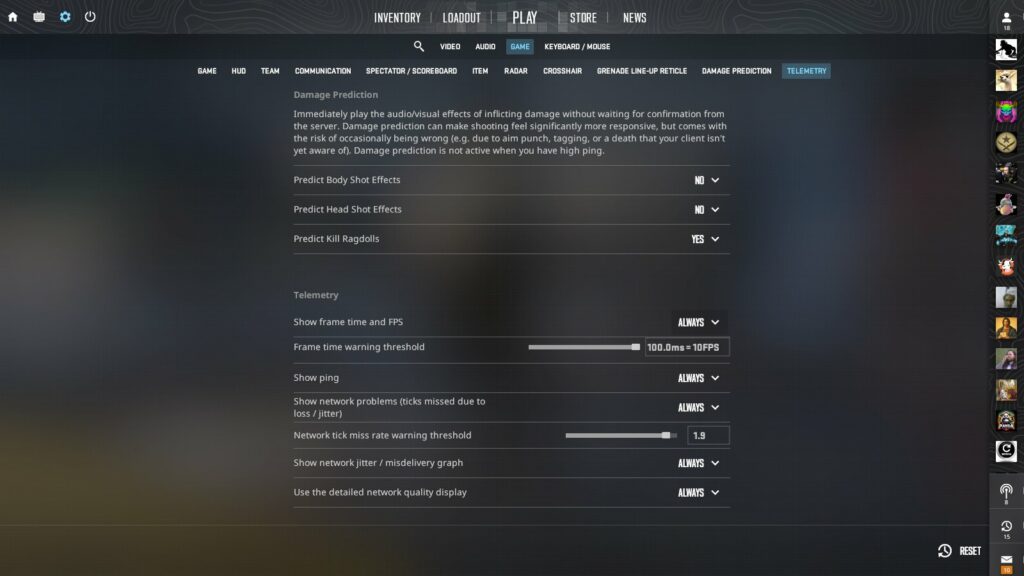
The Telemetry menu lets you see a bunch of important network information (including fps, ping, packet loss, and jitter). To access it in CS2, simply go to Settings > Game > Telemetry and toggle any of the following options to show either (i) if conditions are poor or (ii) always:
| Menu Option | Description |
| Show frame time and FPS | Shows the worst recent frame time in milliseconds, and the current average frames per second. |
| Show ping | Shows the round-trip latency to the server, in milliseconds. |
| Show network problems | Shows the percentage of ticks that are not available at the time they are needed, due to network loss or late delivery. The rate in each direction (upstream to the server and downstream from the server) is displayed. Network misdeliveries can often be automatically corrected, and missed ticks can be filled in with extra buffering. This number only counts ticks that are missed due to network misdelivery and not corrected. |
| Show network jitter or misdelivery graph | Show a real-time graph of network jitter. Misdelivery events (loss, reordering, or excessive jitter) are highlighted. |
| Use the detailed network quality display | Display network information on two lines. In addition to the ping and missed tick rate, this also shows the raw packet loss and jitter measurements. |
Don’t Let Packet Loss Stop You
Packet loss is rough, and it’s even more noticeable in CS2 due to its sub-tick netcode. Unlike CS:GO, every hiccup is painfully obvious, and there’s nowhere for it to hide when your connection falls apart. However, if you’re tired of lag and dropped packets ruining your game, there’s still a way to keep up with the action.
At Thunderpick, you can take advantage of the best odds, exhilarating markets, and generous bonuses without worrying about packet loss ruining your shot. Plus, with our rapid, fee-free transactions and crypto payment options, you can place CS2 bets instantly and cash out every cent of your earnings.
Always practice Responsible Gambling and check out our latest promo offers and boosts. T&Cs apply. 18+ to play.