
We’ve talked about my bets, as part of the recent changes. The My bets tab has gotten an update too.
My bets section in right menu displays all wagers placed by the Player, along with the link to profileʼs My bets pages, where the. Player can access full lists of both Open and Settled bets.
Table of Contents
The ‘My Bets’ section includes four tabs: two main ones — Open and Settled — and two subtabs under Open: Cash Out and Live.
The lists are updated instantly; for example, when the Cash Out option becomes available, the player sees it immediately. Previously known as Pending and History respectively, you’ll have buttons that show all of your open bets and your settled bets.
If you’re looking to “Cash Out”, you’ll be able to see open bets that can be cashed out or have been canceled by the player. You can also go straight to your profile page by pressing the “See more” button.
Cashout and Cancellation
- Cashout allows you to settle a bet before the event ends – either to limit a loss (often receiving less than the stake), or to secure a profit (usually not exceeding twice the original stake) if the bet is going well.
- Cancel is a feature that lets the player cancel their bet for a full refund as long as the odds haven’t changed.
- If a bet is Void, it was cancelled by an Admin rather than the player. We do treat Cancellations and Cashouts differently, however, for convenience, we have them under the same menu for players.
To cashout or cancel, click the Cash OUt button in the My bets section of the right-hand menu. After clicking the Cash Out button, the wager section displays the current cashout amount, which updates automatically with every odds change. Once the Player clicks Confirm, a confirmation toast is shown, and the bet is removed from both Cashout and Open tabs.
Every possible cash out value presented to the player is animated so you’ll never miss a change to the dynamic odds

Live
All open wagers where one match have started are considered Live. Every Single and Same Game Combo (SGC) wager in this tab is marked with a blinking red dot. For regular combo wagers, a blinking red dot is shown only next to the subwager whose event is currently live.
A combo will only show in your live tab when one of the subwagers is Live, once the wager is settled, the combo will be removed from the Live tab.
Wagers View
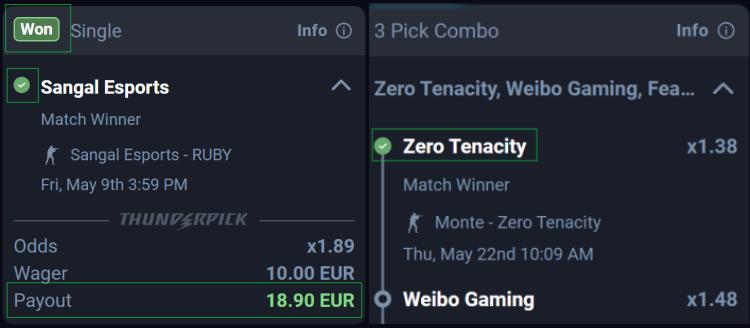
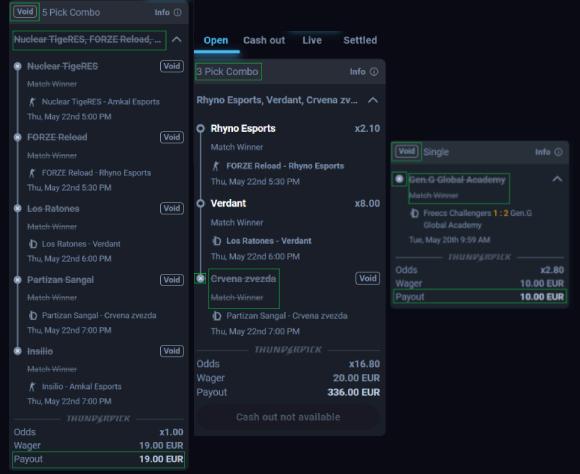
The wagers view displays the most important information, such as the outcome tab or subwager status.
For unsettled combo wagers, the icon is displayed per subwager. Settled SGC and combo follow the same display rules as single wagers.
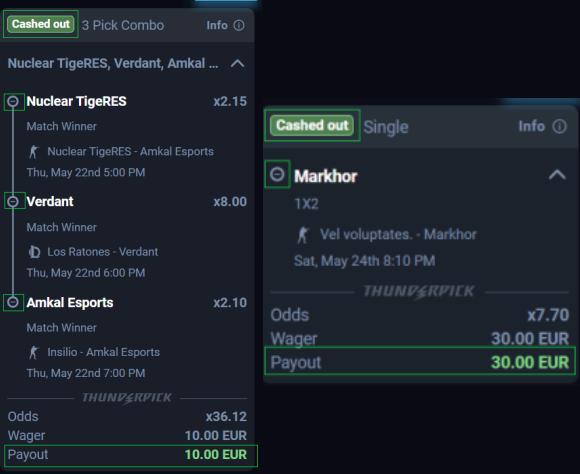
The cashed out status is shown for bets that have been cashed out or cancelled by the player (as opposed to cancelled by an admin, where it would show Void). The payout amount appears in green. Once a combo wager is cashed out or cancelled, all subwagers are marked as cashed out and will have their outcomes updated later, unlike lost combo wagers.
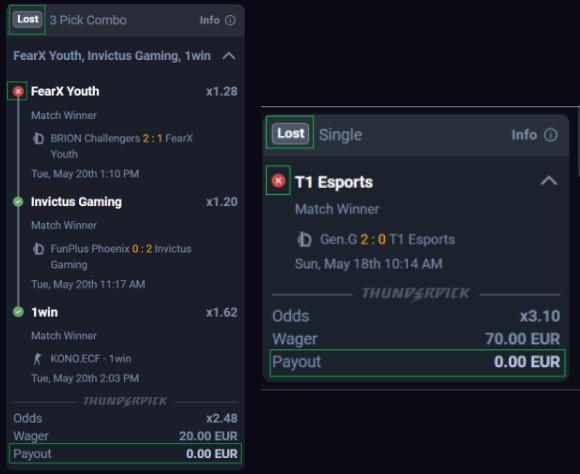
Lost wagers will have a red icon and a greyed out Lost tag. If one of the subwagers is lost in a combo or SGC, the entire combo will show as lost, and highlight which subwagers were responsible.
Void wagers (previously “Cancelled wagers”) will have a line through them. Unlike lost wagers, if any leg of the combo are voided, the entire combo will still remain in the Open tab. IF the combo itself is void, then all subwagers will be voided.
Share Bet
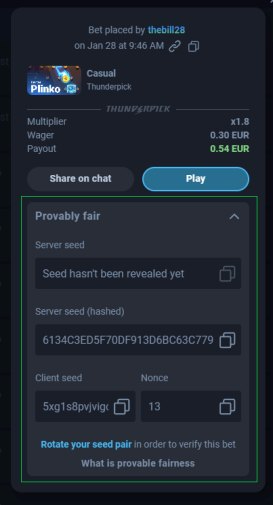
With more social features than ever, the Share Bet modal displays the details of your wager, including the time it was placed. You can share the wager as a direct link or use the “Share on chat” button. You can also copy the Bet ID from this view if you ever need to talk to Customer Support.
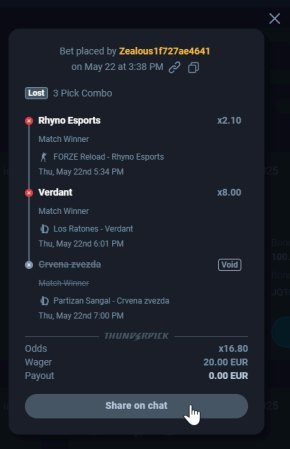
To find it, just click the info button in your “My bets” tab, or the share button in your “My bets” profile page.
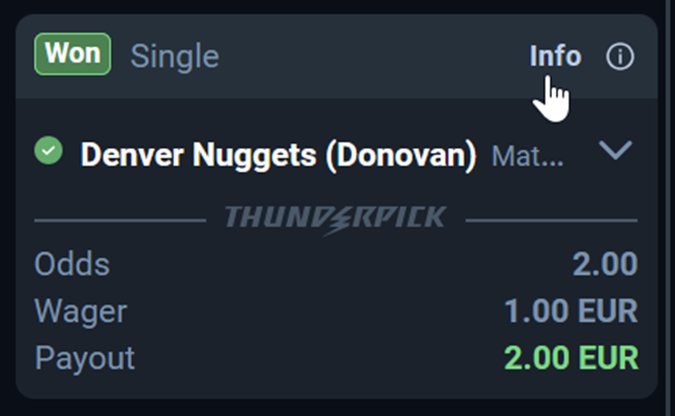
When you click, you’ll get a few options for sharing. You’ll get a modular widget that lets you confirm what it is you’re sending.
How to share your wagers
Owners and visitors can share their wager in 2 ways. You can “share on chat” with the button, which will paste it straight into the chat window, or click the link icon to copy to your clipboard to use anywhere else.
Wagers can’t be shared by players with enhanced privacy settings (status “Hidden”).
If a player shares their wagers then changes their player privacy settings, then that will be reflected on the interface as well.
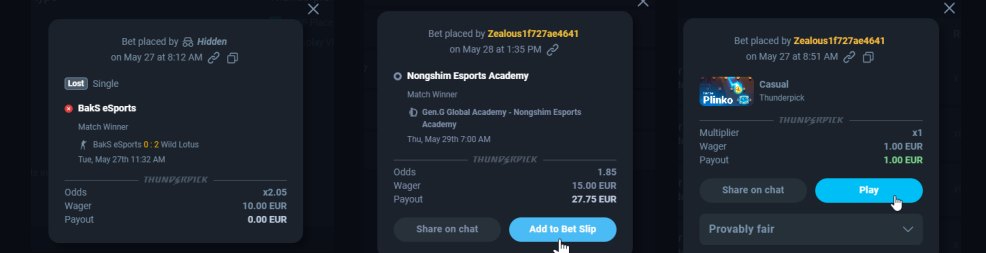
And for those looking for the provably fair details for games like Thunder Plinko and Thunder Dice, that’s there too.
Thunderpick is always looking to bring you the cutting edge for both markets and features. We know that the seconds count when clutching up a bet, so we’re hoping these new layouts will help streamline your games as you Ace your Play.