
Turn off those cheats! Just kidding—not everyone who runs into a Valve Anti-Cheat (VAC) error in Counter-Strike 2 (CS2) is a cheater or has any suspicious third-party program installed. It’s common for innocent PC gamers to get the VAC Unable to verify game session CS2 error when attempting to join a multiplayer game via matchmaking.
The bad news is that there is no silver bullet that always hits its target when attempting to fix the notorious CS2 VAC system error. The good news, however, is that you’ve found our comprehensive and up-to-date guide that includes several solutions to the issue.
Table of Contents
Every Solution To Fix CS2 VAC Error
We have a list of solutions to share, starting with the easiest and moving on to technical fixes requiring more effort.
Please note: Thunderpick is not responsible for any issues that may occur when following the solutions outlined below. We tested these solutions and performed diligent research, but we cannot guarantee success. Proceed at your own risk.
Log Out Of Steam And Log Back In
Our first suggestion is to close CS2, log out of Steam, and log back in again. Test to see if the VAC error is fixed before moving on to the next step. The simplest solution is sometimes the best. It’s the Occam’s Razor principle, and it might work for the CS2 VAC game session error.
Restart Your System
To quote the classic sitcom, The IT Crowd: “Have you tried turning it off and on again?” If logging out and back into Steam doesn’t work, try turning off your PC completely and then turning it back on again.
Play A CS2 Match With Bots
Before you start tinkering with your CS2 installation files or testing different settings, we suggest playing a match with bots to see if it remedies the situation. While this method doesn’t always work, it’s harmless to try. You could play just a few rounds, but we suggest sticking around and completing the match. If nothing else, this will help you improve your aim via bot gameplay before facing real players.
Change Steam Nickname And Avatar
Your Steam profile picture (avatar) or nickname may have been flagged by someone as inappropriate, resulting in a VAC error. If this is the case, you can change your nickname and avatar. Here’s how:
- Click on your Steam name, then select “Profile” in the dropdown menu.
- Select Edit Profile on the right-hand side.
- Make the changes, save, and restart Steam.
- Launch CS2 to determine if the solution worked.
Verify Integrity Of Game Files
One of the most successful solutions to VAC errors in CS2 is verifying your game files’ integrity. You can initiate this process via Steam by following the steps below.
- Open Steam.
- Navigate to your Steam Library.
- Right-click on CS2 and select “Properties.”
- On the left-hand side, you’ll see a list of options. Select the Installed Files tab, which is generally the third option.
- Click on “Verify Integrity of Game Files.”
Wait for the process to finish. If Steam finds any irregularities, it will automatically download and update your CS2 files accordingly.
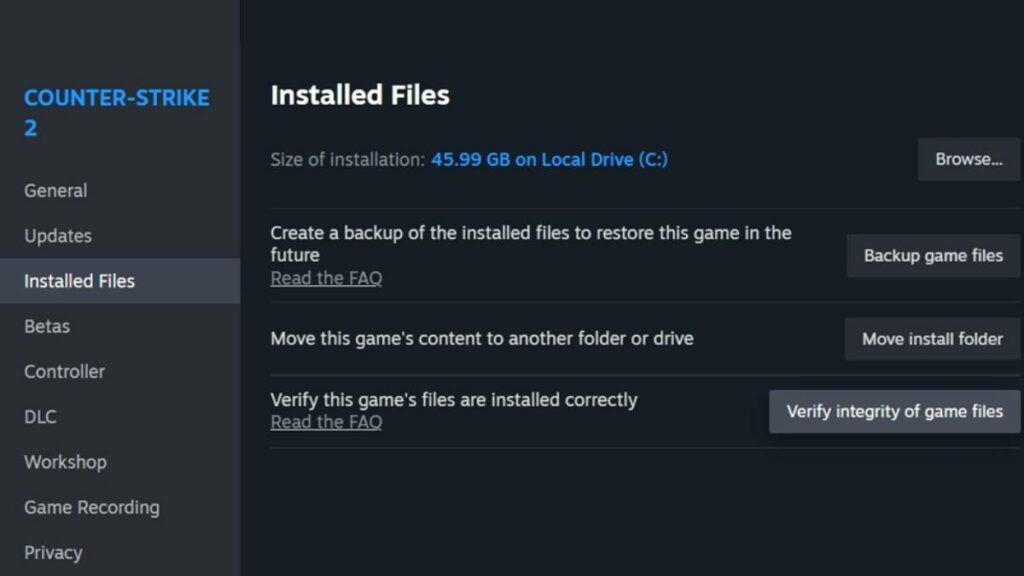
Once Steam finishes the process, launch CS2 and check if you are still running into the VAC error. This solution can actually fix many issues gamers may experience playing dozens of titles on Steam, so give it a try!
Disable Third-Party Overlays
There’s a chance that using third-party overlays may result in a “VAC was unable to verify your game session” error in CS2. We suggest turning off any program overlays if you are running into a VAC error. Examples include MSI Afterburner, the chat program Discord, and antivirus software.
Update Graphics Drivers
Always ensure that your graphics card drivers are up-to-date. We recommend using the latest stable version of graphics card drivers from NVIDIA, AMD, or Intel.
Uninstall And Reinstall CS2
Another solution to try is uninstalling and reinstalling CS2. Here’s how:
- Launch Steam.
- Right-click on CS2 via the Library, click on “Manage,” and then “Uninstall.”
- Wait for the process to complete, restart your PC, and reinstall CS2.
You could also uninstall CS2 and Steam via the Windows Control Panel, then delete any remaining files in the Steam folder (default: C:\Program Files (x86)\Steam) to ensure every single file is removed from your PC.
Repair Steam Services
There’s a minor chance that the VAC error you are experiencing is related to Steam services not working correctly. To repair Steam services, follow the steps below.
- Close Steam via the “Exit Steam” option.
- Press the Windows Key and R at the same time. Make sure you don’t have any other programs open on your desktop.
- In the little box that pops up to the left-hand side, enter the following command: “C:\Program Files (x86)\Steam\bin\SteamService.exe /repair”
- Press Enter or select “Ok” to run.
- Restart your PC.
The steps above assume that the local files of the Steam client are installed in the default directory. If you customized the installation and selected another directory, use the correct file path in the above command.
Make Sure DEP Is Enabled
VAC relies on Data Execution Prevention (DEP) in different Windows OS versions to work. If your PC’s DEP is not set up correctly, there’s a good chance VAC cannot detect cheats or suspicious programs.
DEP should be enabled by default. However, if you exhausted the previous steps, you can make sure that DEP is appropriately enabled and set up for the current OS boot entry.
- Close CS2 and Steam.
- Open the Windows Command Prompt (use Windows’s search bar to find it).
- Copy and paste the following line: bcdedit.exe /set {current} nx OptIn
- Press Enter.
- Restart your PC.
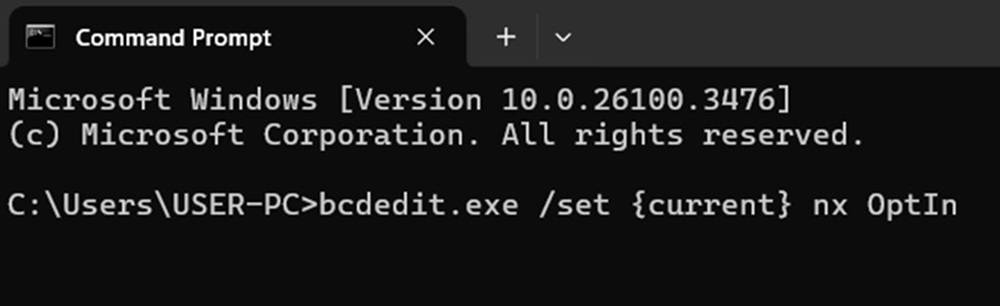
Following the steps outlined above requires the highest technical expertise of all solutions in this guide. Proceed with caution and at your own risk. If the command doesn’t work, try to use the “Run as Administrator” option when opening the Command Prompt.
Finally—Contact Steam Support For Help
The Steam Support page is more helpful than you may realize. It’s home to dozens of guides to fix different issues. You can also simply contact Steam Support directly for specific technical issues with CS2.
Don’t expect Valve Corporation to respond swiftly. You’ll likely have fixed the error before Steam Support responds. Despite a relatively slow response time, Valve’s support agents can and likely will help fix VAC errors, so it’s worth a shot.
Check out Valve’s official support post for official steps to implement many of these solutions.
Still Stuck? Don’t Give Up!
If you’re still struggling with the “VAC was unable to verify your game session” error in CS2, don’t lose hope. Double-check that you’ve followed all our troubleshooting steps carefully, and if all else fails, reach out to Steam Support. With patience and persistence, you’ll be back in the game in no time with no VAC errors to stop you.
Always practice Responsible Gambling and check out our latest promo offers and boosts. T&Cs apply. 18+ to play.