
First, here are the root causes of CS2 stuttering and the most effective fixes. We’ll then move on to diagnosing network/hardware-related problems, making upgrade decisions, and implementing advanced tweaks. We’ve left no stone unturned, providing options for beginners and advanced users to try, so let’s leap in.
Please note: Thunderpick is not responsible for any issues that may occur if you follow any of these steps outlined.
Table of Contents
What Causes CS2 Stuttering and How to Fix It
It’s beyond frustrating to miss a vital shot with your trusty AWP or fail to transfer a beautiful spray with your AK-47 to a second target, all due to a stutter at the wrong moment. To compete in CS2, you must ensure the smoothest gameplay experience possible, leaving your victory or defeat only in your hands. So what exactly causes these annoying issues to occur?
CS2 stuttering is typically caused by three factors: hardware limitations, software settings, or network problems. You may also experience a combination of these issues. For example, your game’s graphical settings may not match your hardware’s capabilities, leading to sharp frame-rate drops, which in turn presents itself as stuttering.
There’s a lot to consider, including poor network connectivity, background applications dimming performance, CPU/GPU conflicts causing micro-stutters, and thermal issues because of a poor cooling solution. We’ll get to all these in the following sections of this guide, but for now, we want to provide you with some quick fixes.
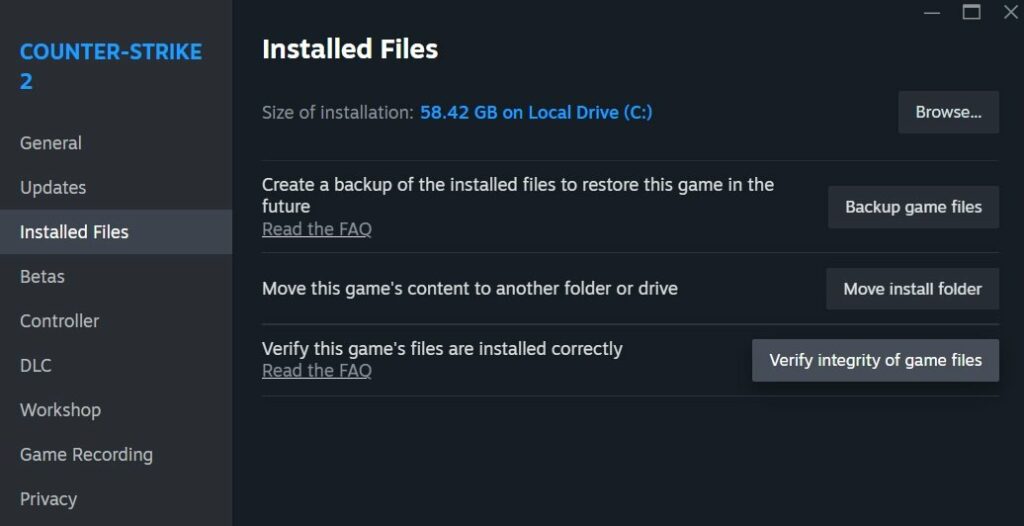
Always start with the tried-and-tested first step: verify the integrity of the game files. Follow the steps below to get started on your troubleshooting journey and possibly eliminate your CS2 stuttering issues in an hour or less:
- Launch Steam.
- Navigate to your Steam Library and find Counter-Strike 2.
- Right-click on the game and select “Properties.”
- On the left-hand side, you’ll select the “Installed Files” option.
- Click on “Verify integrity of game files” and start the process, where Steam checks if your game’s files are installed correctly, updating where necessary.
Additional common fixes to stuttering in CS2 include:
- Updating software, such as graphics card drivers.
- Closing background applications.
- Enabling or disabling specific in-game settings to meet your hardware’s capabilities.
- Using a wired network connection instead of Wi-Fi.
- Playing on CS2 servers closest to your location.
- Enabling or disabling frame-pacing settings. Try disabling V-Sync, which could eliminate screen tearing but cause input delays.
- Ensuring there are no power restrictions or battery-saving mode enabled (laptops only).
These quick fixes are only the beginning, as we’ll dive deeper into troubleshooting throughout the next section of this guide.
There may be more than one cause for your CS2 stuttering issues. A gamer could suffer from poor internet connectivity and FPS drops at the same time. Therefore, it is paramount that you identify problems via diagnosis procedures, finding the issue(s) at the heart of the problem.
Diagnosing Network & Hardware Issues in CS2 Stuttering
If your gaming rig has a software or hardware issue, consider physical upgrades or software tweaks as a solution. However, if there’s a network issue at play, upgrading your PC’s hardware will make absolutely no difference. Therefore, it is essential to first identify which type of issue is at the heart of your CS2 stuttering problems.
Pro Tip: To help identify the root cause of CS2 stuttering issues, try playing practice matches against bots or casual deathmatch. Avoid playing CS Premier or Competitive modes, as focusing on performance-related stats can lead to poor gameplay and spoil the game for others.
Identifying The Type Of CS2 Performance Issue
The easiest way to identify what type of problem you are experiencing is to look for frame-rate drops (indicating software/hardware problems) and latency issues, such as timeouts or spikes. To identify the type of problem, launch CS2, navigate to settings, and then scroll down to the “Game” tab to enable all Telemetry settings.
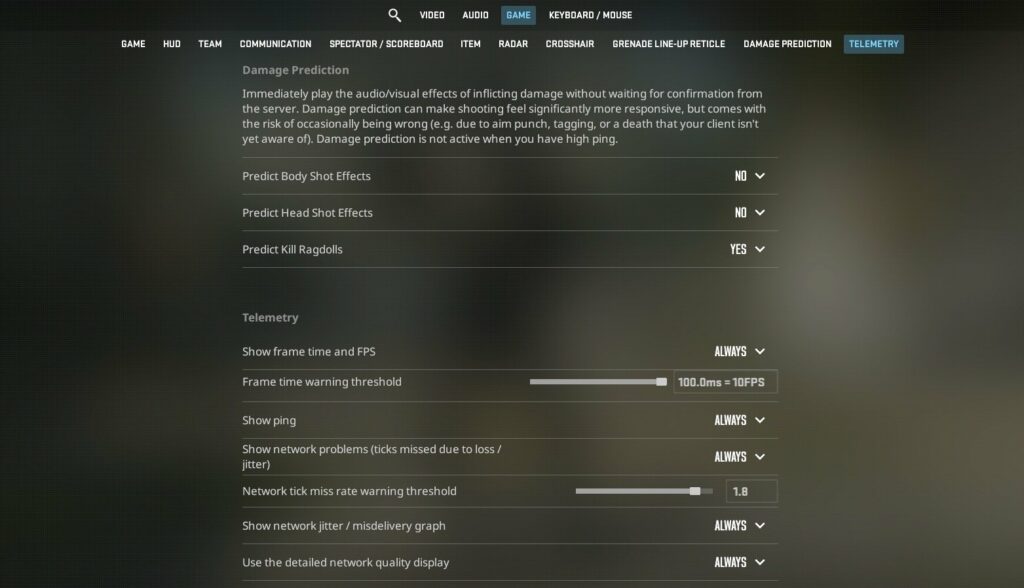
Once you’ve enabled Telemetry settings, you’ll notice average FPS, max network latency in milliseconds (MS), Ping, and Jitter values.

If you see drops in your average FPS, it’s a software or hardware issue. However, if the Jitter and Ping values spike, solving network-related problems is the solution.
Network-Related Problems
Network-related problems as the reason for stuttering in CS2 often manifest as rubber-banding, and enemy/friendly players appearing to teleport to different locations with sudden movement jumps. It’s akin to losing a few seconds every so often during gameplay, making it impossible to remain competitive.
The easiest way to improve your experience is to go to the “Game” options in the CS2 settings menu and reduce your “Acceptable Matchmaking Ping” value to as low as possible. We recommend between 60 and 80, but you can go as low as 25. The lower your ping, the more responsive the game will be. The tradeoff is that you must be close enough to active CS2 servers for the matchmaking system to find relevant matches at the 60 to 80 ping range. This could increase the time searching for a game.
Next, select the “Unrestricted” option for Max Acceptable Game Traffic Bandwidth, which is self-explanatory. If you are close to the CS2 servers, you can also choose “1 Tick” under the “Buffering to smooth over Packet Loss / Jitters” option. This will increase your ping slightly, but could help reduce stuttering.
Other fixes to network-related problems you could try are:
- Instead of using Wi-Fi, connect your gaming PC or laptop directly to your router with a LAN cable, also known as switching to Ethernet.
- Contact your Internet Service Provider (ISP) for advice and to ensure that there are no localized network issues occurring.
- Consult your router’s manual to see if there are any settings you can optimize for gaming-related tasks, upgrade the firmware, or reset to default if tinkering has occurred in the past.
- Close background applications that may use a lot of network resources, such as streaming services or file download programs.
Quick Tip: If you think another program may be hogging your internet bandwidth, open your Windows Task Manager or Resource Monitor and navigate to the Network tab to identify and close bandwidth-heavy applications.
Lastly, you can check community forums and the official CS2 social media accounts. There’s a slight chance that the CS2 stuttering you are experiencing is due to a widespread issue on Valve servers. If many players suddenly complain about this type of issue, just hang tight for a few hours until the developer resolves the problem.
Hardware-Related Problems
Poor graphics card (GPU) or CPU performance directly impacts your frame rate, lowering your average frames per second (FPS), which in turn translates to stuttering.
There are many causes of poor hardware performance, including low or outdated specs, bottlenecks (where, for example, the CPU is MUCH stronger than the GPU, or vice versa), thermal throttling (where your PC gets too hot), or taxing background applications. Fixes you can attempt when hardware-related problems are evident include:
- Update your graphics card drivers, and ensure that your PC is running on the latest version of your Operating System.
- Closing any unnecessary background applications/tasks in your Windows Task Manager.
- If it’s an especially warm day, cool down your room and possibly direct a fan towards your gaming rig. A lower operating temperature can alleviate more issues than you’d think.
- Clean your gaming rig. Dust build-up can lead to higher temperatures and cause performance issues.
- If you have overclocked your hardware, try resetting to default values. Sometimes, overclocking can lead to unstable performance.
- Run a virus scan to detect malicious software that may be hiding in the background, consuming resources.
Apart from these measures, you must always ensure that your hardware’s power can match your monitor’s refresh rate. For example, if your monitor has a 144Hz refresh rate and is set to this in CS2’s video settings, your hardware must be powerful enough to run the game at an average of 144 FPS.
Why Does CS2 Stutter With High FPS?
If your gaming rig can run CS2 at 300 FPS, it should be a smooth, stutter-free experience, right? Well, not always! You may run into the conundrum where the FPS is high, but stuttering still rears its ugly head. That’s where frame pacing comes into play, which can result in micro-stuttering.
Frame pacing refers to the timing between frames. If frames aren’t delivered at a consistent rate, and CS2’s FPS fluctuates significantly, you can experience choppiness. If the FPS jumps or drops often, you’ll experience this type of lag in the form of micro-stuttering.
Some quick fixes for micro-stuttering:
- Close all background applications.
- Update drivers.
- Disable overlays such as Discord, Slack, Twitch, or any other third-party programs.
- Set your max FPS to match your screen’s refresh rate. For example, set max FPS to 144 for your 144Hz screen.
After each change, we suggest checking your frame-rate consistency via the aforementioned Telemetry settings. Tweak until you get consistent numbers instead of simply high numbers. A smooth graph translates to less micro-stuttering.
Hardware Upgrades & Advanced Fixes to Reduce CS2 Stuttering
To identify the root cause of a hardware-related issue, determine which part of your gaming rig is limiting your performance, and whether an upgrade is required, you should turn on Steam’s built-in Overlay Performance Monitor. Navigate to the main Steam tab, select “Settings” followed by the In-Game tab, and enable all settings in the Overlay Performance Monitor section.
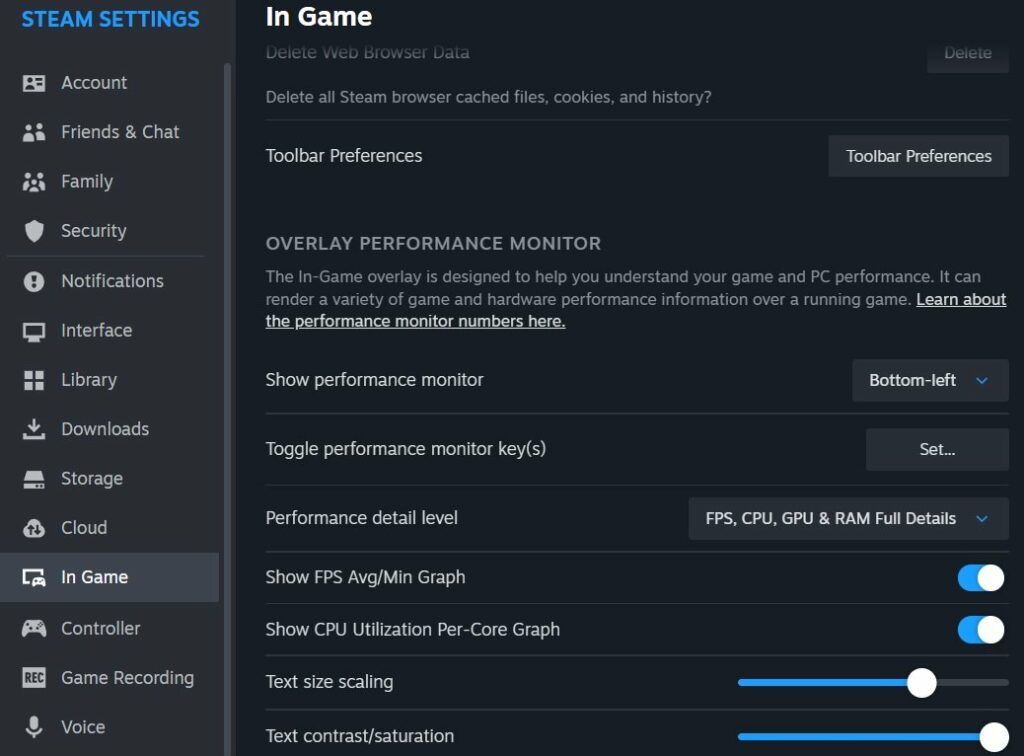
Play a CS2 match (preferably with bots) and keep an eye on all the detailed stats and graphs provided by Valve’s Overlay Performance Monitor. You’ll notice the amount of VRAM used, the percentage of CPU power, the amount of RAM, and intricate details such as CPU and GPU temperature. These stats will help you identify any potential bottlenecks. For instance, if your GPU’s VRAM is maxed out, but your CPU usage is only 50%, it may be time to consider a graphics card upgrade, as your CPU is likely fine.
You may see huge performance gains and the elimination of stuttering if you upgrade from a low-end graphics card, such as the GeForce GTX 1050 with 2 GB of VRAM, to a beastly GeForce RTX 4070 with 12 GB GDDR6X VRAM. Those with an older CPU, such as the Intel i5-9400, could upgrade to a six-core Intel i5-12400, but if they have only 8 GB of RAM or an old GPU, the performance improvement may not be as significant as they’d hope.
Keep in mind that there are thousands of possible hardware combinations. What works for one system may not work for another, so you also need to research hardware compatibility. CPUs or RAM may not fit into specific motherboards.
For example, let’s say you upgrade from an Intel i5-9400 to an Intel i5-12400. In this case, you will also need a new motherboard due to the different CPU socket types (LGA 1151 for i5-9400 and LGA 1700 for i5-12400). Always research every piece of your PC’s internals before proceeding to advanced hardware fixes or possible upgrades.
Advanced Hardware Fixes & Upgrading
There are some advanced hardware fixes that knowledgeable users could try to improve their system’s performance, and thereby, eliminate stuttering in CS2. We’ve listed some options below, but you must proceed with the utmost caution while avoiding static and moisture.
- If your CPU is running hot, consider upgrading its cooler.
- If a GPU is running at a high temperature, consider upgrading your PC’s case fans or adding a custom cooling solution.
- If performance monitoring software indicates your system’s RAM is limited with background applications closed, consider upgrading. 16 GB of RAM should be enough, but 32 GB wouldn’t hurt if you want to be on the safe side.
- If you are still using a traditional HDD, consider upgrading your boot drive (where Windows is installed) to a Solid State Drive (SSD). This upgrade is one of the easiest to perform, and could alleviate micro-stuttering altogether.
For those not proficient at tinkering with PC hardware, we recommend seeing a specialist to assist with upgrades or tweaks, instead of going in blindly.
Game & System Optimization Tips to Prevent CS2 Stuttering
The type of in-game settings you choose to use, especially in the advanced graphics tab, depends mainly on your gaming rig. A good rule of thumb to follow is to lower the graphical quality until you hit a consistent, desired FPS target. Adjust options such as Particle Detail, Model Detail, and Shader Detail to a lower value. Other options to turn down include MSAA and Ambient Occlusion.
Find our guides to the best CS2 settings and the best resolution/aspect ratio for details on every single game setting you can tweak.
Ideal Steam Launch Settings For CS2
There are a few launch settings that you can enable to optimize performance, giving your gaming rig the best possible chance for a smooth, stutter-free experience. Check out our recommendations below, including what each launch option does.
- +fps_max 0 Removes the default FPS limit so that the game can go as high as your hardware supports. Suitable for users with high-end hardware and screens featuring high refresh rates.
- -high This sets the game’s process priority to high, instructing your Operating System to allocate more CPU resources to CS2.
- +r_drawparticles 0 Disables particle animations, which could lead to higher frame rates on low-end systems.
- -softparticlesdefaultoff Disables soft particle rendering, which could lead to higher frame rates on low-end systems.
- -vulkan Switches CS2’s rendering to Vulkan (from DirectX 11). Use only if you are suffering from performance issues and would like to test Vulkan. It could slightly increase or decrease performance, depending on your hardware setup.
Check out our complete guide to the best CS2 launch options for more details, including how you can use these commands in the first place.
Operating System Tweaks & Settings
The best thing you can do to tweak your OS, which we assume is Windows for most readers, is to turn on the Game Mode feature. Navigate to the “Gaming” tab in your Windows 11 settings and enable Game Mode. This optimizes performance while you are in a game, turning things off in the background.
- In your Windows system settings, under power, select “Best Performance” from the drop-down menu. The default setting is Balanced, which may provide some extra performance.
- Ensure that all unnecessary applications are closed, and that no Windows updates are scheduled to run.
- Select “best performance” or similar settings in your GPU’s dedicated software, for example, you can fine-tune performance in the NVIDIA App if you have a GeForce graphics card.
- Turn off gameplay capturing software.
- Ensure that you have a decent amount of space on the SSD where Windows and CS2 are installed. We recommend at least 50 GB to avoid any resource constraints.
FAQs on CS2 Stuttering
Check out some of the most popular questions and answers related to stuttering in CS2.
Why Do I Get Lag With This Monster PC?
The stutters may be related to your network, or you may need to update your graphics drivers. Ensure that everything is up-to-date and set a maximum FPS corresponding to your monitor’s refresh rate to avoid frame-pacing problems.
Does NVIDIA Reflex Low Latency Work?
Yes, NVIDIA Reflex Low Latency and its AMD equivalent, Anti-Lag 2, do work. However, they require more powerful hardware to function properly.
When Do I Need To Set An FPS Limit?
If you experience frame-pacing issues and micro-stuttering, accompanied by otherwise high FPS on a powerful gaming PC, you should limit your FPS to your monitor’s refresh rate. In this case, remove the +fps_max 0 launch command.
Should I Contact Valve About CS2 Stuttering Issues?
If you exhaust your troubleshooting options, you can always reach out to Valve by creating a Steam support ticket.
Will A CS2 Update Fix My Technical Issues?
It is impossible to know if the next update pushed out by Valve will fix your issues. Unless a new update causes widespread stuttering problems, the chance of seeing a significant improvement is slim.
What Settings Does My Favorite Pro Use?
Pro players use many different types of settings and hardware setups. A prime example is the well-researched community post on Reddit, where they compared the settings of 40 pro players.
A Smooth CS2 Betting Experience Guaranteed
With our comprehensive guide to fixing stuttering in CS2 that considers hardware, software, and network problems, you should be well on your way to a smooth gameplay experience. While we cannot say with 100% certainty that our guide will fix all stuttering issues for every gamer, what we can guarantee is a world-class CS2 betting experience using your favorite cryptocurrencies.
Built by gamers, for gamers, Thunderpick boasts a treasure trove of valuable information on our esports blog and features an industry-leading esports betting section. Be sure to check out our annual Thunderpick World Championship, too, featuring a massive prize pool, fantastic production, and some of the best teams in the world.
Always practice Responsible Gambling and check out our latest promo offers and boosts. T&Cs apply. 18+ to play.