

VALORANT Party Chat and All Chat are both important communication channels, especially in Unrated and Competitive playlists. They let you share vital intel with your teammates, including enemy locations, utility usage, rotations, and tactical setups, enabling effective coordination in your matches.
Even highly skilled VALORANT players struggle without it, with callouts as simple as “two mid” or “rotate B” proving critical for deciding rounds. Here’s everything to know about chat in VALORANT, including how to use it, muting and filtering options, proper in-game etiquette, and more.
How To Use Party Chat And All Chat In VALORANT
The chat box in VALORANT can be opened by pressing Enter on your keyboard. However, before you send a message, it’s important to understand the different channels available, as not everything you type in chat is private.
Here’s a quick breakdown of all the different text chat channels in VALORANT:
- Party Chat is a private channel for communicating with players in your pre-made lobby (i.e., before the match begins).
- Team Chat sends messages to everyone on your team during the match, including random players not part of your pre-made stack.
- All Chat is a public channel that is visible to everyone in a match, including your teammates and all enemy players.
The indicator beside the input field shows whether you’re in Team or Party Chat. If it’s not correct, you can type /team or /party before your message to switch between channels. Otherwise, you risk accidentally revealing your strategy to the enemy team.
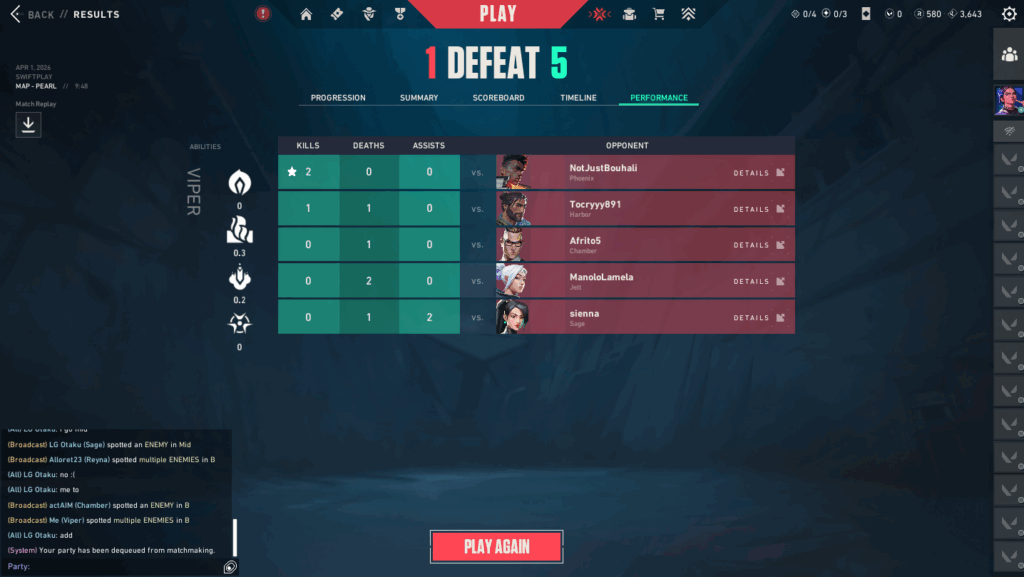
All Chat
If you want to message everyone in the lobby, including enemy players, you can open All Chat by pressing Shift + Enter or by typing /all before your message. To confirm you’re in the right channel, ensure the prefix is set to “All.”
And remember, this channel is public, so avoid sharing any information or hints that could reveal your team’s plan.
VALORANT Console Chat
Although text chat is available in VALORANT on console, there isn’t a native controller-friendly typing interface. As a result, entering messages can be impractical, which is why many players connect a compatible keyboard for more efficient communication.
To use the chat on console, press Tab to open the chat box, then type /team, /party, or /all before your message. When you’re done, hit Enter to send and Esc to close the chat and return to regular gameplay.
Regardless of the platform, you should never share sensitive or personal information, and always double-check the active chat label before sending. Party and Team Chat should be used only for tactical discussions with your teammates, while All Chat is primarily reserved for neutral communication or sportsmanship.
Step-by-Step Guide To Text Chat In VALORANT
By now, you should have a basic understanding of how to use Party and All Chat in VALORANT. To expand on the chat procedures discussed previously, let’s look at some specific text-based commands you can use to instantly send private, direct, or quick reply messages without breaking focus between rounds.
How To Send Messages
- Press Enter on your keyboard to open chat
- Type your message
- Press Enter again to send
- Press Esc to close the chat
Remember that you can use the /party, /team, and /all commands to switch between the different communication channels.
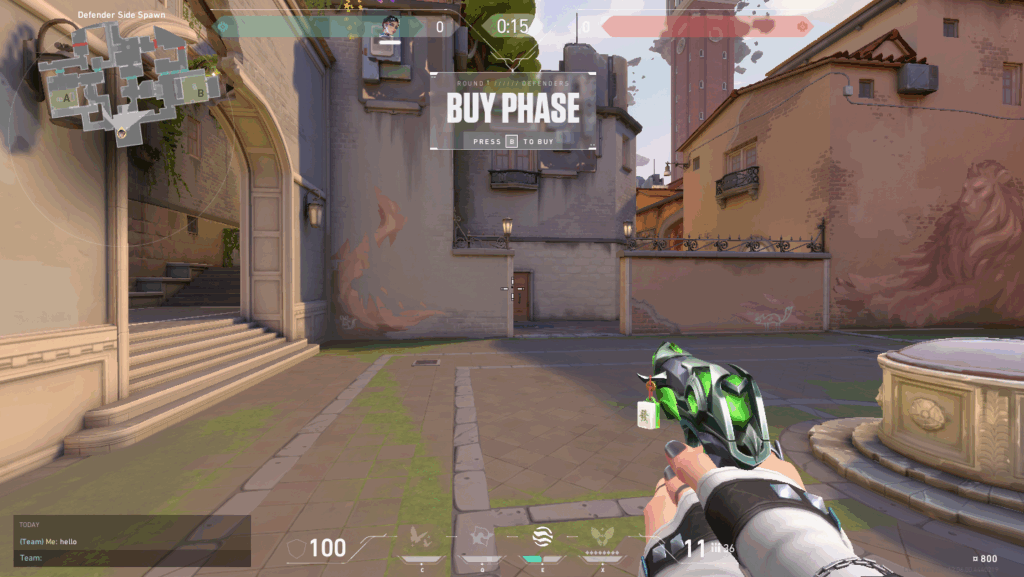
How To Send Private Messages
- Press Enter on your keyboard to open chat
- Type /w [Player Name] or /whisper [Player Name]
- Type your message
- Press Enter to send
- Press Esc to close the chat
Only players on your friends list can receive private messages or whispers. Also, you can easily cycle between direct messages and Team or Party Chat channels by pressing Tab.
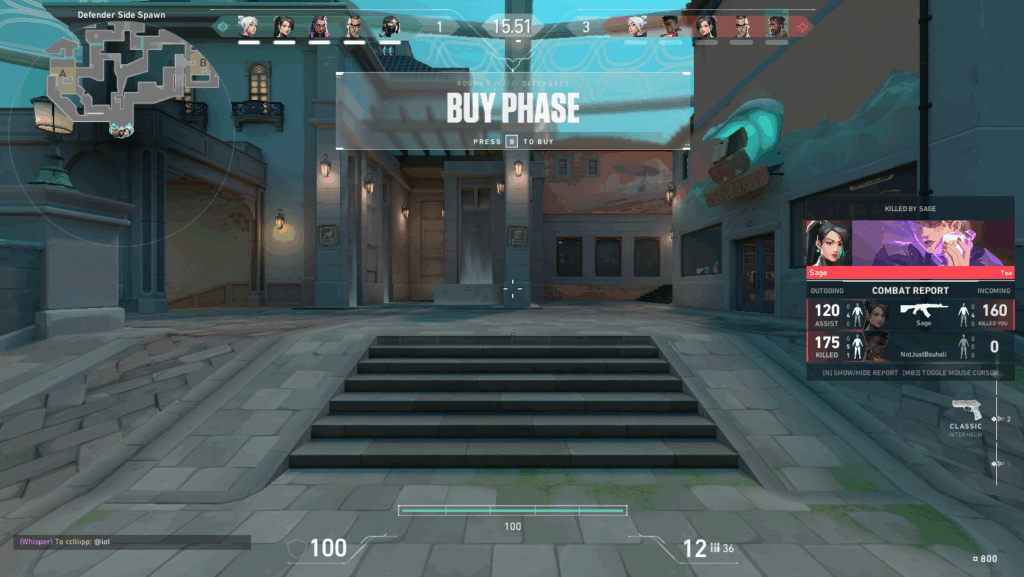
How To Instantly Reply To Private Messages
- Type /r or Ctrl + Enter
- Add your reply
- Press Enter to send your message
- Press Esc to close the chat
By using these VALORANT chat shortcuts, you can improve your communication speed and reduce the likelihood of mistakes, especially while switching between Team Chat and private messages mid-match. Best of all, it works whether you’re playing VALORANT on PC or console.
Using Voice Chat For Team Communication
While text chat is widely used in matches, VALORANT’s voice chat enables instant, real-time communication. It operates on a push-to-talk system by default and is by far the fastest and most effective way to coordinate plays, call out enemy positions and agent abilities, or adjust your strategy mid-round.
To use it, simply press and hold the assigned key to transmit audio from your microphone, then release it to end transmission. There are currently two voice channels available:
- Team voice chat (default hotkey: V) – Your voice will only be heard by your teammates.
- Party voice chat (default hotkey: U) – Your voice will only be heard by players in your pre-made party.
How To Change Voice Chat Keybinds
If the default VALORANT voice chat keybinds don’t work (or you’d like to change them), simply follow these steps:
- Press Esc to open the menu
- Go to the Settings > Audio > Voice Chat submenu
- Select Edit Voice Chat Key Bindings
- Change Party Voice Push To Talk Key and Team Voice Push To Talk Key to a preferred hotkey
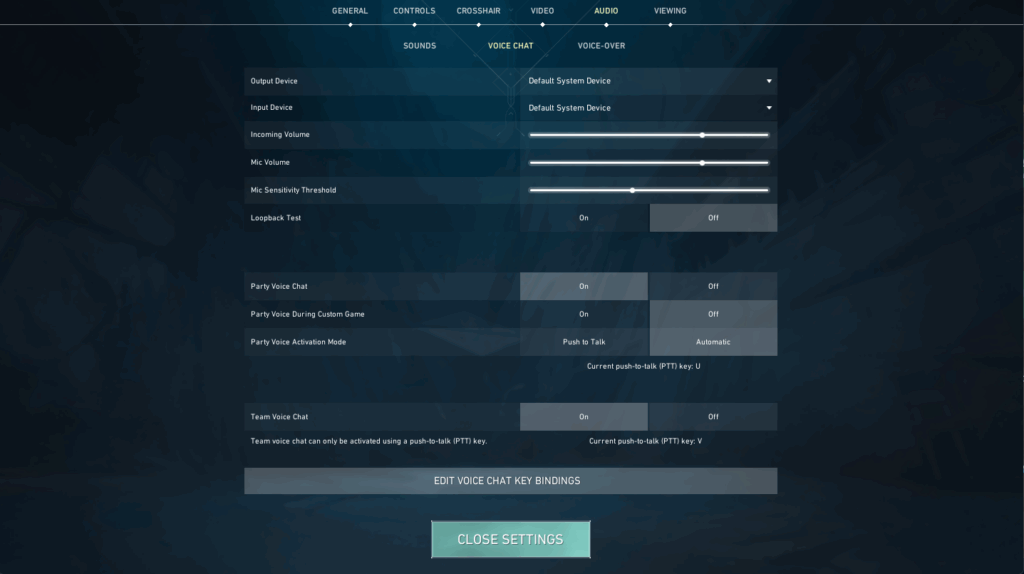
You can also configure other voice settings in the same menu, including the incoming voice volume (controls how loud teammates sound), mic volume (sets how loud you sound to others), and mic sensitivity threshold (to reduce background noise), or party voice open mic (if you prefer continuous voice transmission).
Just ensure your microphone is properly configured in Windows and VALORANT before you queue for a match. If your teammates cannot hear you, double-check that the correct input device is selected and that voice chat is enabled to avoid any communication issues.
Muting And Filtering Chat In VALORANT
Chat can sometimes become distracting and impact your focus, putting you off your game.
Fortunately, Riot has many built-in tools to help block out the noise, from muting voice and text comms to filtering explicit language, words, or phrases. You can even mute entire channels or silence individual players if things are heated.
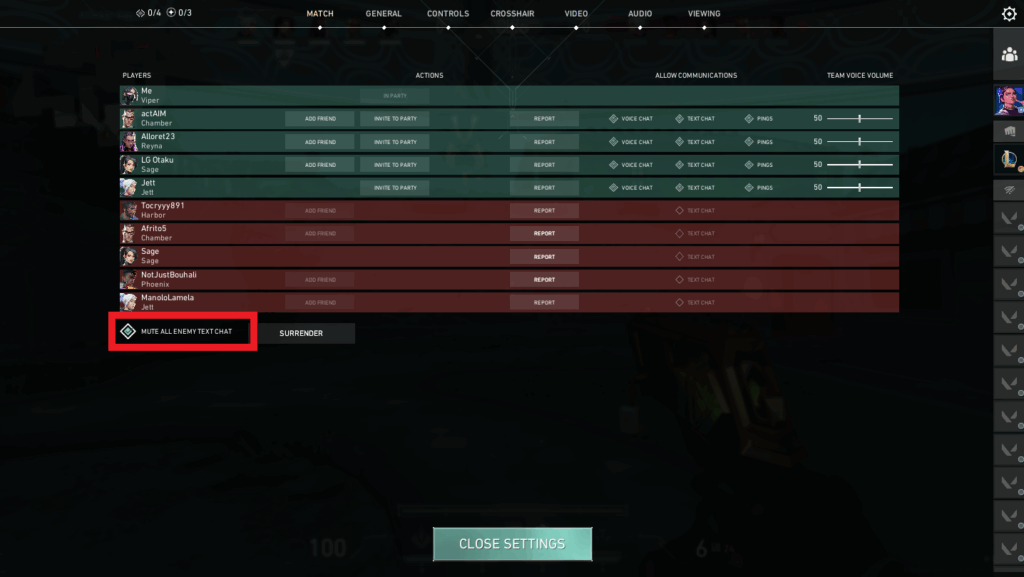
How To Mute Enemy Text Chat
- Press Esc during a match
- Go to the Match tab
- Toggle Mute All Enemy Text Chat
- Close the menu to apply the changes
Note: While there is no single “mute all” or “mute team” button in VALORANT, you can still manually mute all players on your team by unchecking the Text Chat box on the same screen.
How To Disable Voice Chat
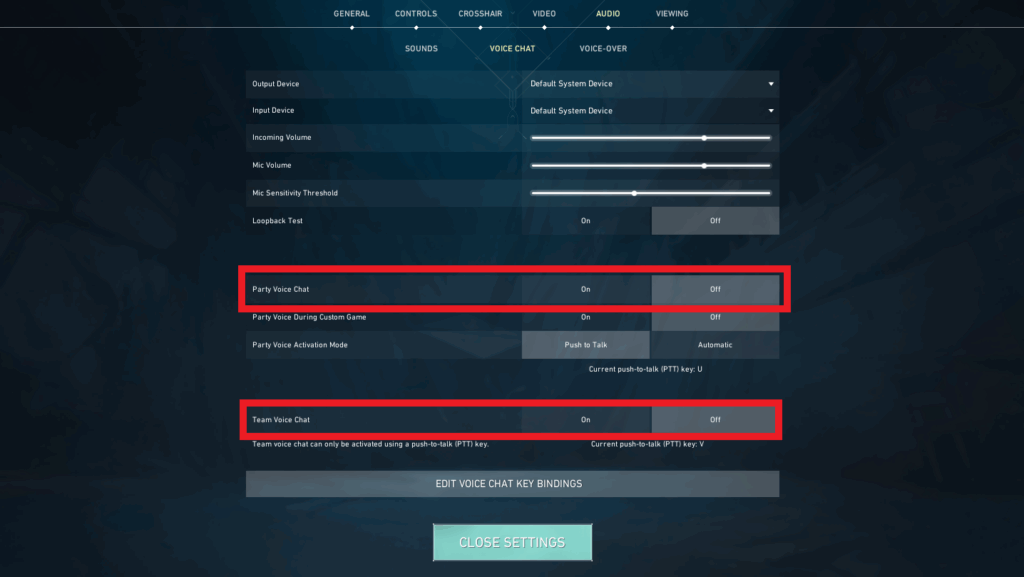
- Open the Settings menu
- Go to the Audio > Voice Chat tab
- Toggle Team Voice Chat off
- Toggle Party Voice Chat off
- Close the menu to apply the changes
This will turn off all voice communication with your party and team.
How To Mute Individual Players
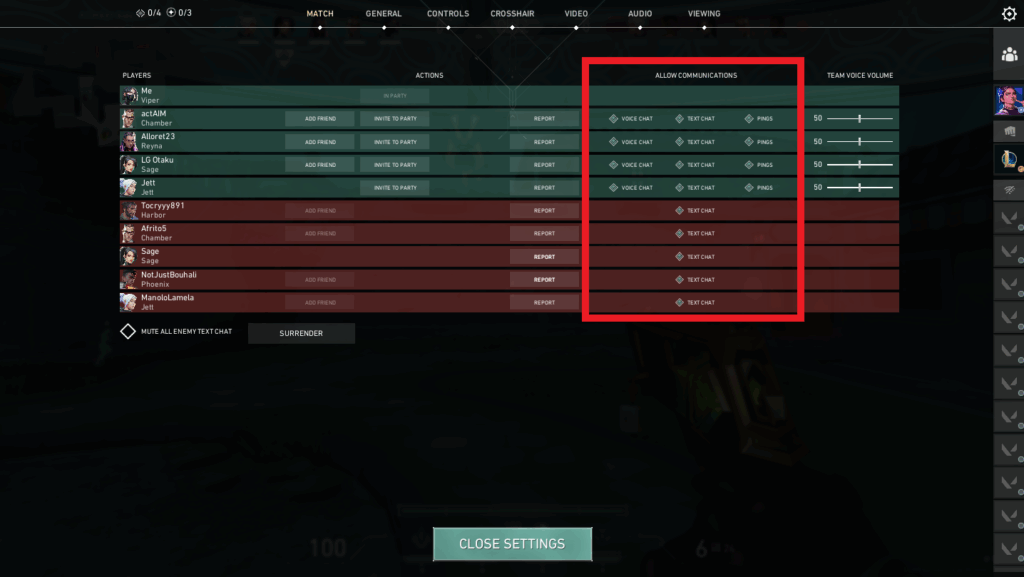
- Press Esc during a match
- Go to the Match tab
- Find the player you want to mute
- Uncheck the Voice Chat box
- Uncheck the Text Chat box
- Uncheck the Pings box
- Close the menu to apply the changes
This will silence all voice, text, and ping communications from the selected player, preventing them from disturbing you for the rest of the game. Muting is fully reversible, too, so you can restore communication by re-enabling these options at any time.
In case you’re wondering, there are currently no quick mute commands in VALORANT.
For example, typing /mute all (to mute everybody), /mute [player name] (to silence a particular player), or /unmute (to restore communication) will not work because these commands do not exist. You will instead have to manually mute all players at the start of every game.
How To Filter Text Chat
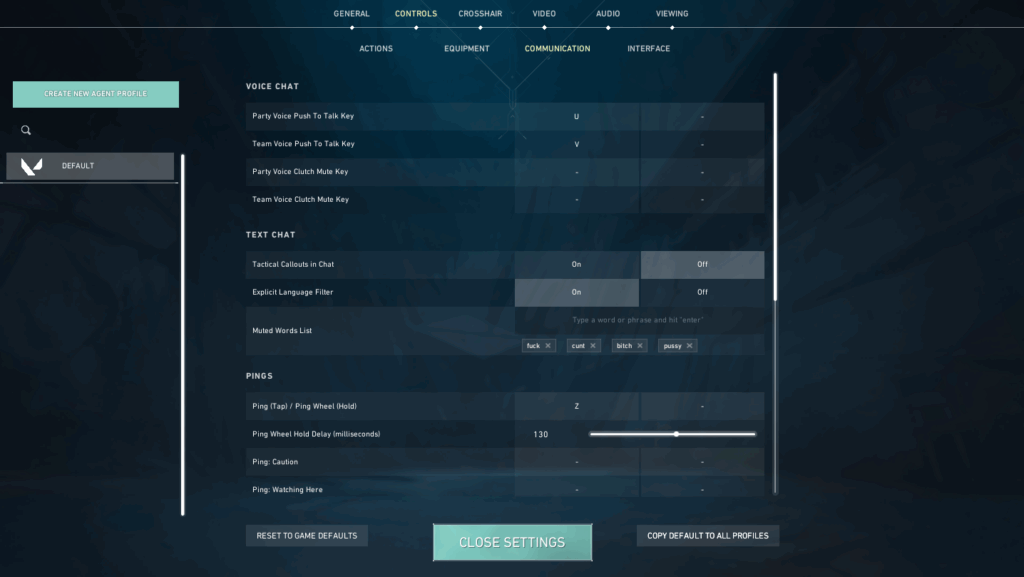
If you want to reduce offensive language or block specific words, you can use VALORANT’s built-in text filtering to keep chat clean without disabling communication entirely. Here’s how:
- Go to Settings > Controls > Communication
- Toggle Explicit Language Filter on
- Type a word or phrase you want to block into the Muted Words List and hit Enter
- Close the menu to apply the changes.
Communication Etiquette And Best Practices In VALORANT
It’s important to recognize that good communication isn’t just about being respectful to others, but also about sharing key information at the right time. While chatter can help boost team morale, clogging up comms can drown important callouts, create confusion, and even cost you rounds.
Here are some quick tips and best practices to keep in mind:
#1. Don’t Share Sensitive Information In All Chat
Any message sent in All Chat is visible to both your teammates and opponents, so be careful not to accidentally reveal your team’s strategy. This includes rotations, site hits, player positions, utility usage, or post-plant instructions. Even the tiniest detail can inadvertently ruin the game.
#2. Use Team/Party Chat For Tactical Discussions
Team and Party Chat are the preferred channels for tactical discussions because they are visible only to players on your team. If you need to have a 1-on-1 with a player, rather use /w [player name] for direct messages and /r to quickly reply to a private message, without switching channels.
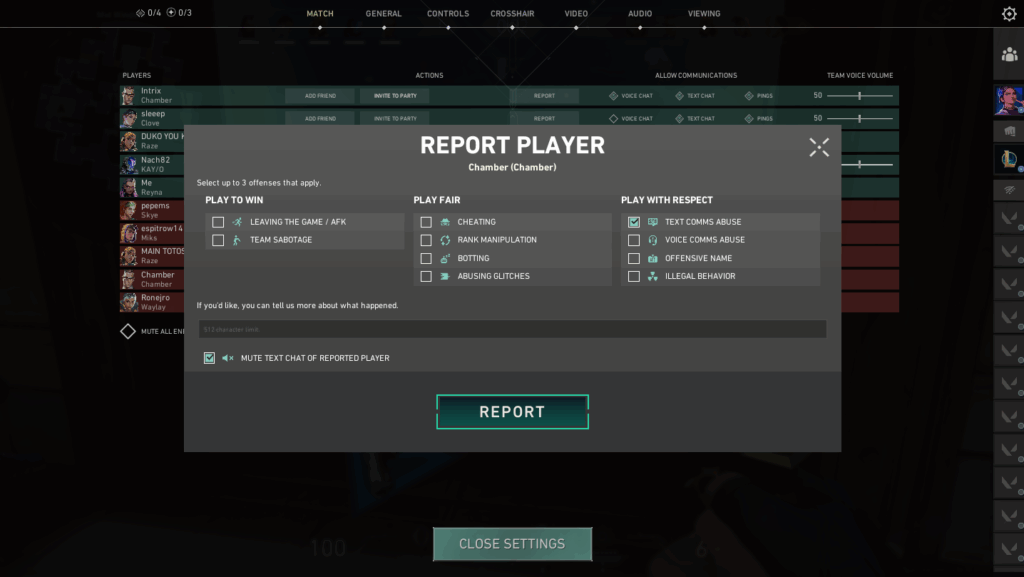
#3. Don’t Trash Talk
Riot has a zero-tolerance policy on cyberbullying, so don’t be mean to other players. Offensive or abusive language in All Chat will result in reports and disciplinary action, including suspension or revocation of your communication privileges. Always keep text and voice chat clean and respectful.
#4. Try Not To Clog Up Airspace
Try to keep your communication as clear-cut as possible to avoid clogging up the airspace. This includes keeping callouts brief, relevant, and easy enough to understand, especially during those tense moments. Too much unnecessary chatter can distract teammates, and key information can be lost in translation.
#5. Be Considerate On Voice Comms
Always be considerate when communicating with other players. Ensure your mic audio quality is clear, your input volume is balanced, and lower the input sensitivity so it doesn’t accidentally pick up background sounds. If you’re in a noisy environment, use push-to-talk to avoid distracting your team.
FAQ: Chat Functions In VALORANT
Still unsure about a specific chat function in VALORANT? Here are some frequently asked questions (FAQs) to help you out.
How Do I Switch From Team To All Chat (And Vice Versa)?
Press Enter to open Team or Party Chat and press Shift + Enter to open All Chat. Alternatively, you can also type /team, /party, or /all before your message to switch between channels; just remember to check that the prefix before sending.
How Do I Privately Message Or Whisper In VALORANT?
To send a private message, press Enter and then type /w [player name] or /whisper [player name] followed by your message. Press Enter again to send. You can also quickly reply using the /r command. Only players on your friends list can receive private messages.
Can I Mute Just One Player Or Do I Have To Mute Everyone?
Yes. To mute an individual player in VALORANT, press Esc during a match, go to the Match tab, and uncheck the Voice, Text Chat, or Pings box next to that player. This will silence all communication from them, without affecting comms with the rest of your team.
Where Are My Chat/Voice Settings?
You can access your Chat/Voice settings from the Audio > Voice Chat menu. From here, you can change keybinds, devices, volume, and input sensitivity. Additional settings are available via the Controls > Communication menu.
What Is The Safest Way To Avoid Accidentally Sending Strategy To Enemies?
To avoid accidentally sharing your team’s strategy, it’s advised to only use Team Chat or Party Chat for all tactical communication. You can check the chat prefix is set to “Party” or “Team” before sending your message to be absolutely sure.
Always practice Responsible Gambling and check out our latest promo offers and boosts. T&Cs apply. 18+ to play.