
Learning to use Counter-Strike 2 (CS2) replay controls effectively while viewing a demo is crucial for competitive gamers. With a clear understanding of the system, you can go through your competitive matches or watch pro players from every angle in the most significant events, like the Thunderpick World Championship.
In this guide, you’ll learn how the CS2 replay controls work, how you can expertly navigate the user interface (UI), watch pro demos from every angle, and use advanced analysis tools.
How To Play Demos & Access Replay Controls
If you want to watch your own matches, the good news is you can easily access the replay controls. Simply update CS2 to the latest version, launch the game via Steam, and click the TV icon in the top-left corner. From here, you can download and watch your latest gameplay.
For those downloading pro demos (or recording their own antics via console commands), follow the steps below to launch the demos:
- Copy downloaded demos into your game/csgo folder.
- Launch CS2.
- Open your developer console with the ~ (tilde) key.
- Type in “playdemo” followed by the demo file’s name. For example, playdemo fazevsnavi and press Enter.
The CS2 replay controls should be active by default when you jump into a demo. If, for some reason, you do not see the replay controls UI, press the Shift + F2 keys simultaneously, and it will appear. Alternatively, you can use the demoui console command to toggle the replay controls on or off.
Watch Live games using the Replay Controls
A great way to get the hang of using the replay controls and also watch current live matches instead of just replays is using Betpeek. The replay controls on desktop are 1 to 1 with CS2, letting you get your observing practice in, with X-Ray, Grenade Follow and the like integrated into your live 3D viewing.
Playback Control Options & Using The Replays UI
With your demos now playing, let’s review the replay controls UI. There are several important options for gamers to explore at the bottom of their screens.
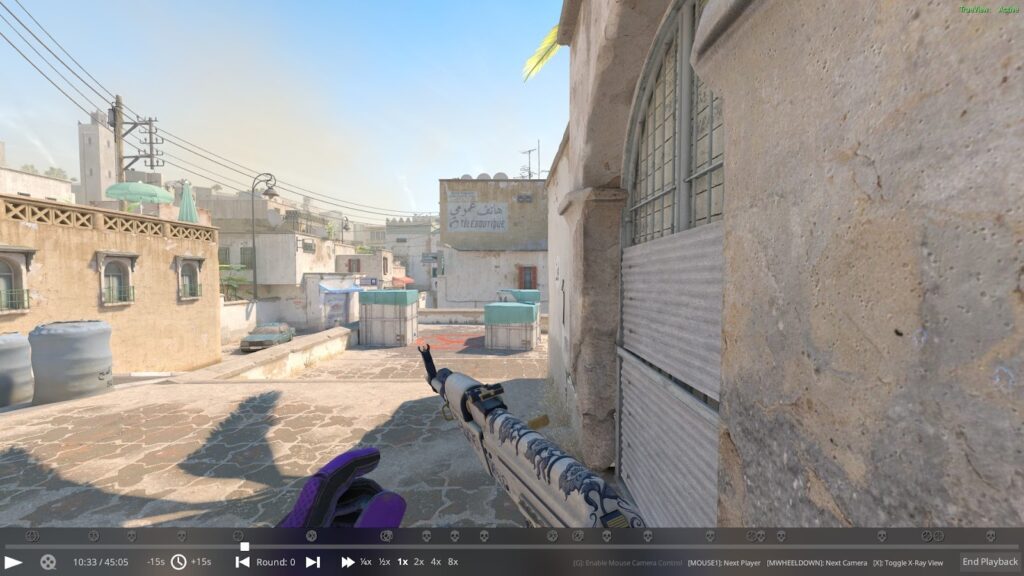
To make the endeavor as easy to understand as possible, we’ve outlined the options from left to right.
- Play/Pause – Stop or resume playback.
- Highlights – This option shows only the highlights. Let it run, and it will take you through all the highlights of a map. This also causes the “Round” option to turn into “Highlight.”
- Time – Shows the map’s precise time. For example, the FaZe vs. NRG Dust2 map lasted 45:05.
- Skip Time – Jump 15 seconds into the past or future.
- Round – Move to the start of the next or previous rounds.
- Speed – Select from a variety of playback speed options, from ¼x to 8x.
- Enable Mouse Camera Control – In freeview mode, this option lets you precisely control the view with your mouse. Toggle again for a cursor to appear.
- Next Player – Select the view of the next player, cycling through all 10 participants by either clicking with your Mouse 1 button (shoot) or by pressing Spacebar.
- Next Camera – Cycle through camera view options, from first to third person, and through different field-of-view perspectives.
- Toggle X-Ray View – Turns the X-ray view option on and off. This allows the viewer to see through walls.
- End Playback – Exits the demo and returns to the CS2 home screen.
You’ll also notice there are icons representing kills on the replay UI timeline. Players can use this timeline to navigate to specific in-game moments.
CS2 Replay Control Keyboard Shortcuts
Get the latest info on the CS2 replay controls and corresponding keyboard shortcuts right here.
- Shift + F2 – Toggle the replay control UI on or off.
- Tab – Open the scoreboard
- Q – Open the Minimap
- Spacebar – Toggle between different views, from first/third person player perspectives to free camera view.
- Numbers 1 to 0 – Switch to a specific player assigned to that number, running through all 10 players in a match.
- Mouse 1 – Click the Mouse 1 (shoot) button to cycle through all the players currently alive in the demo playback.
- Mouse Wheel Scroll – Cycle to the next camera angle.
- X – Enable or disable X-ray view.
- G – While in free camera view mode, enable or disable the mouse cursor by pressing this key.
Important note: The keyboard shortcuts are accurate at the time of writing. With updates, Valve may change the functionality of some keys.
Advanced Viewer Tools For Replay Analysis
While the standard viewing experience via the replay controls UI is enough for most gamers, others may want to analyse specific moments or see the action from unique angles not available through the regular player viewpoints.
If you want to pinpoint a precise moment in a map, down to the millisecond, you can use the demo_gototick [tick] console command. Experiment with the “tick” value, and keep in mind that there are 64 ticks in one second in CS2. For example, using demo_gototick 256 will move the demo to precisely the four-second mark. With this command, you can narrow it down to the millisecond level.
Another popular advanced tool for replay analysis is using the free camera view mode. Cycle through the different views until you get the viewpoint. Use WASD to move and the mouse to navigate the environment freely. It’s the perfect way to analyse utility usage and map positioning.
For analysis purposes, we recommend turning X-ray vision on and using the cl_drawhud 0 command for a clear view of the action.
CS2 Replay Console Commands
The replay controls system has improved so much over the years that many CS2 console commands are no longer necessary. However, they’ve become second nature to most longtime CS fans, and they instill a sense of extra control.
| CS2 Console Command | Function For Watching Demos |
| demoui | Opens the main demo playback interface (the control panel). |
| playdemo [file_name] | Starts playing a demo file, for example: playdemo match1 |
| record [file_name] | Starts recording a demo of your current game session into a .dem file. For example, record dust2map1 |
| stop | Stops the current demo recording or playback session. |
| demo_timescale [value] | Adjusts the demo’s playback speed. Set to 1 for normal speed, 0.5 for half-speed, or 5 for fast-forward. |
| demo_gototick [tick] | Jumps to a specific point in the demo, measured in game ticks. For example: demo_gototick 10000 |
| demo_gototime [seconds] | Jumps to a specific point in the demo, measured in seconds. For example: demo_gototime 120 to jump to two minutes. |
| demo_pause | Pauses the demo playback. |
| demo_resume | Resumes the demo playback. |
| demo_togglepause | Toggles between pausing and resuming playback. |
| spec_show_xray [0/1] | Toggles X-ray vision (seeing players through walls) on or off. The default is 1 for on; use 0 to turn it off. |
| cl_drawhud [0/1] | Toggles the entire HUD on or off. |
| cl_draw_only_deathnotices [0/1] | Hides the HUD but keeps the kill feed visible. |
Pro tip: Check out our complete, in-depth guide to all CS2 console commands.
CS2 TrueView Demo Playback Explained
On Nov. 5, 2025, Valve released a CS2 update that added the TrueView Demo Playback system. You’ll notice the “TrueView: Active” status at the top-right corner of your screen when using the replay system.
TrueView was introduced to match “the player’s original experience much more closely,” unlike the old system, which showed the servers’ view of the world, without accounting for network latency. The old system was a bit flawed, leading many players to think, “How did he/she make that shot?” while watching demos.
At its core, TrueView is a CS2 system that reconstructs the observed player’s original experience more accurately by re-running client-side prediction. Valve explains that:
“TrueView does not reconstruct the precise timings of rendered frames, so some differences between the original player’s experience and TrueView playback will remain, especially in very slow motion playback. The player’s frame at the time when the mouse was clicked, which is used for hit registration, is shown accurately to the nearest demo playback frame. However, reaction effects such as recoil, muzzle flash, blood splatter, and ragdoll are delayed while playing the game by one or two frames due to the way CPU and GPU work is pipelined, and will not appear at the same time during demo playback.”
Sounds fantastic. Well, TrueView is still a work in progress, and there may be some discrepancies between what the player saw and what actually transpired. Furthermore, the system may not work correctly with older demos.
Valve has disabled TrueView by default when your game version does not match the client version used to record the demo. Players can override this restriction by using the console command cl_demo_predict 2
FAQs About CS2 Replay Controls & Demos
To ensure you have all the information you need, we’ve compiled frequently asked questions and answers about the CS2 replay system for demo viewing.
How Many Demos Can I Keep?
There is no absolute limit to the number of demos you can keep. The limitation is HDD or SSD space, since two to three demos weigh in at around 1 GB.
How Can I Record A Demo Manually?
Use the record [file_name] console command to start recording, and the stop command to stop recording.
Why Doesn’t The Replay Controls UI Appear?
Ensure you watch a demo before using the console command demoui or pressing Shift+F2. The command and keyboard shortcut do nothing if you are not currently inside a demo.
How To Fix CS2 Demos Not Working
Sometimes, older demos do not work with newer versions of CS2. If it’s a new demo that keeps crashing, redownload it from your source (or find a different one). Consider using Steam’s “Verify integrity of game files” option to fix your CS2 install if issues persist.
Can I See Through Walls?
Yes, use the X-ray vision UI option, or the spec_show_xray 1 console command.
Why Do My Demos Lag?
If you are experiencing frame rate drops while watching demos, ensure you have the latest graphics card drivers installed. If your gaming rig barely meets the CS2 system requirements, using fast-forward replay viewing options may cause some lag.
How Do I Activate Replay Controls?
Use the Shift+F2 keys or the demoui console command while watching a demo to turn the replay controls on/off.
Always practice Responsible Gambling and check out our latest promo offers and boosts. T&Cs apply. 18+ to play.