
While bots can provide a decent challenge to beginners in Counter-Strike 2 (CS2), they can become predictable cannon fodder for seasoned players. Sometimes, players don’t want bots filling their practice matches or interrupting 1v1s. That’s why many players choose to remove bots in CS2.
Our guide to removing bots in CS2 covers all the bases, including the quickest way to get rid of those pesky machines and helpful console commands that make the process easier.
Please note: Thunderpick is not responsible for any issues that may occur if you follow any of the steps outlined in this guide.
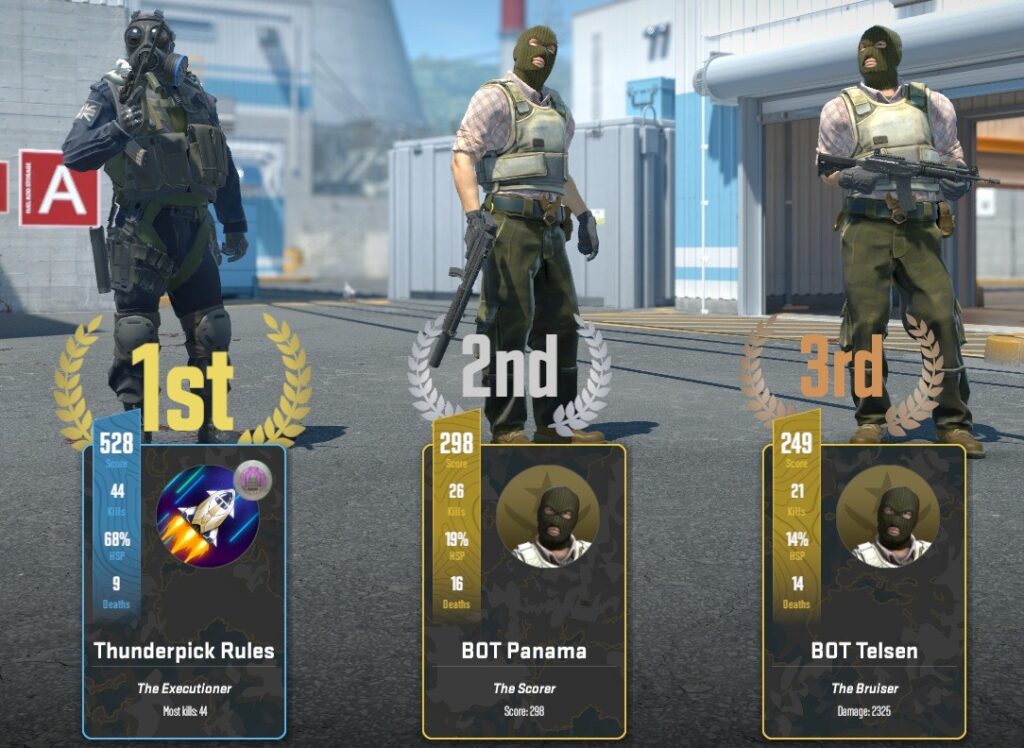
Removing CS2 Bots From Matches
If you find yourself surrounded by unwanted bots during a Practice match, while trying to play one of the best custom maps, or while playing a Private match, there is a simple and effective solution.
Open the developer console and press the tilde (~) or backtick (`) key while in-game with bots. Type in bot_kick and press the Enter key to remove all bots with ease.
We understand that not everyone knows precisely how to use a console command in CS2. Some beginners might not know how to enable the developer console. Don’t worry, we’ll walk you through it.
Enabling The CS2 Developer Console
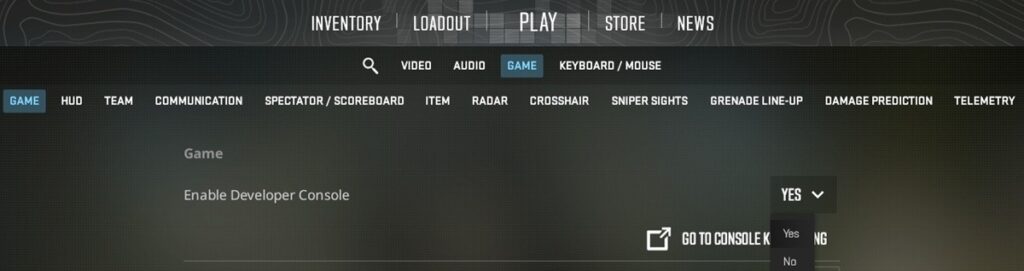
There are two ways to enable the developer console in CS2: via the in-game settings or with a CS2 launch command.
We recommend the first way because it requires no technical expertise and should always work. Follow these steps.
- Open Steam.
- Launch Counter-Strike 2.
- Open the Settings menu in the top-left corner (gear icon).
- Click on the Game tab.
- Toggle “Enable Developer Console” to “Yes.”
The default key for the developer console is ~ (tilde). You can set a custom keybind right below the option where you toggled “yes” to enable the console.
Press the tilde (~) or backtick (`) key while in-game with bots. Type bot_kick and press Enter.
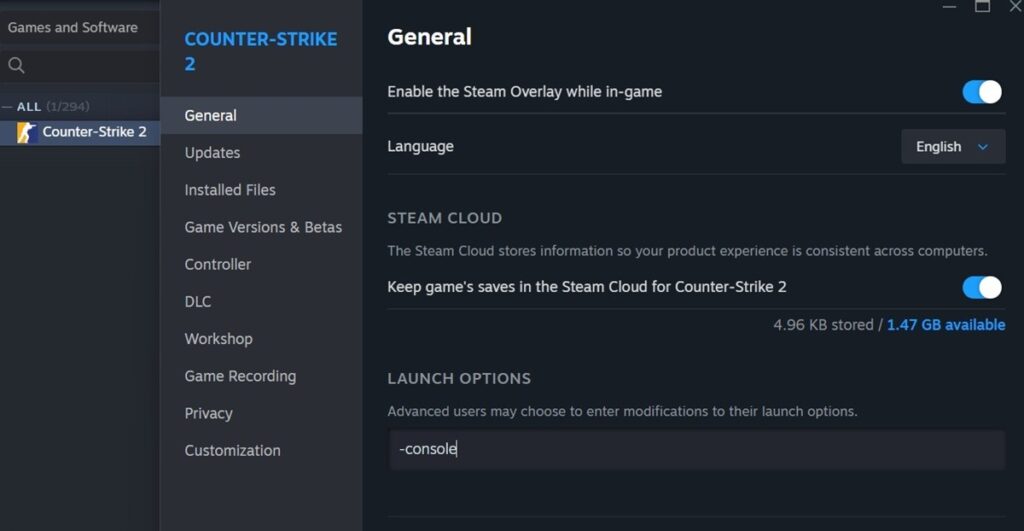
To enable the developer console via a launch command, follow the steps below.
- Navigate to your Steam Library.
- On the left-hand side of your screen, find Counter-Strike 2.
- Right-click on CS2 and select Properties.
- In the General tab, you’ll see Launch Options.
- Enter -console as seen in the image below.
- Close the tab.
- Play CS2 with the developer console enabled.
Pro tip: Use the best CS2 settings for a smooth experience on custom maps, and check out our guide to playing CS2 to improve on the basics.
Step-By-Step Commands For Managing Bots In CS2
Armed with the knowledge to use the CS2 developer console, you are ready to dive a bit deeper.
Let’s get locked and loaded with specific commands that will help you deal with any type of CS2 bot situation. From team removal to kicking one bot, and a permanent solution for custom games, we’ve got you covered.
Important note: The commands mentioned work in practice, custom, and private matches. They do not work in official matchmaking, where bots may appear in Casual and Deathmatch game modes if there aren’t enough real players to fill the server.
Removing All Bots Instantly
To remove all bots in a CS2 match, use the bot_kick command.
Alternatively, you can use the bot_quota 0 command, which will also remove all bots and prevent them from rejoining. The caveat is that, in rare cases, bot_quota 0 keeps one bot active if there are no other real players in the game.
Removing Bots From A Specific Team Or Side
You can remove a bot from a specific team in a CS2 match by using the bot_kick t or bot_kick ct commands, with “t” representing terrorists and “ct” representing Counter-Terrorists.
This removes a random bot from the selected team. These commands are useful if you want five bots vs. you and one other player, or another bot, to customize your experience so the teams aren’t necessarily balanced.
Kicking A Specific Bot By Name Or Number
Use the bot_kick [NAME] command followed by the bot’s in-game name. For example, if the bot’s name is AZUL, you’ll write the command bot_kick AZUL and press Enter.
In CS2, there isn’t a clear number assigned to bots. Therefore, if you want to kick an individual, specific bot, use the name method outlined above.
Preventing Bots From Rejoining
Use the bot_quota 0 command to prevent bots from rejoining the match.
Bots automatically rejoining the server is rare, but it’s possible if you decide to restart an ongoing match. Bots could also rejoin if a real player disconnects. The bot_quota 0 command stops that from happening.
Making Bot Removal Permanent In Custom Matches
Don’t want to type bot_kick every time you create a custom match with friends? No problem! Some custom maps feature built-in bot removal, but others instantly spawn bots. For example, some aim practice maps require a moving target, which makes bots useful.
That’s where creating a custom .cfg comes into play, which you’ll run via a launch command. Don’t worry, it’s not too technical, especially if you follow the steps below.
- Choose a folder to save your custom .cfg files for CS2.
- Open Notepad on your computer.
- Create a new text file.
- In the first line, type bot_quota 0.
- Click on the File menu and select the “Save As” option.
- Name the file autoexec.
- Open the folder where the file is saved.
- Rename the file extension from .txt to .cfg.
- The full file name should read autoexec.cfg.
- Copy the file to the “cfg” folder of your CS2 install.
The correct, default folder location for CS2’s cfg files is C:\Program Files (x86)\Steam\steamapps\common\Counter-Strike Global Offensive\game\csgo\cfg
However, many gamers might have chosen a different installation path. If you are struggling to find out exactly where the game is installed, right-click on Counter-Strike 2 from your Steam Library, click on Manage, and “Browse Local Files.”
This action will take you directly to the Steam\steamapps\common\Counter-Strike Global Offensive\ folder. From here, click on the game folder, the csgo folder, and finally, the cfg folder.
The final step is to automatically run the autoexec.cfg file every time you start up CS2. In your Steam Library, right-click on the game, select Properties, and under the General tab, add the following launch command: +exec autoexec.cfg
The launch command tells CS2 to run the autoexec.cfg file automatically whenever you start the game. To reverse the process, remove the +exec autoexec.cfg text from launch options.
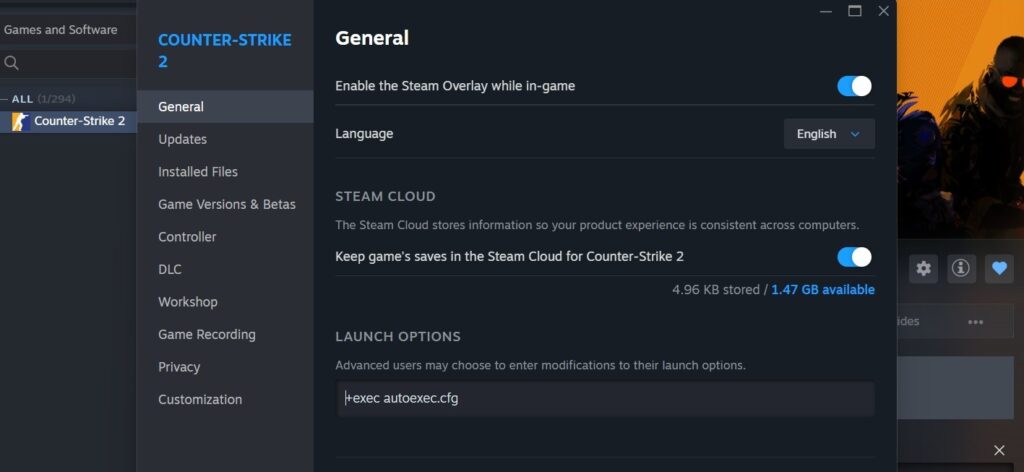
The file name “autoexec” simply indicates that the commands within should be executed automatically on startup when using the launch option. However, you could name the file removebots.cfg or anything else. In this case, you’ll want to use the +exec removebots.cfg launch option.
The most important aspect of naming the custom file is that its extension MUST be .cfg. If it’s anything else, the launch command won’t work.
Verifying CS2 Bots Are Disabled
It’s incredibly easy to verify if CS2 bots are disabled in your match. Once you’ve joined the server, press the Tab key on your keyboard, and the scoreboard will appear.
Check the scoreboard to see if any bots are present. Bots are identified by an uppercase “BOT” prefix, followed by a single space and a name.
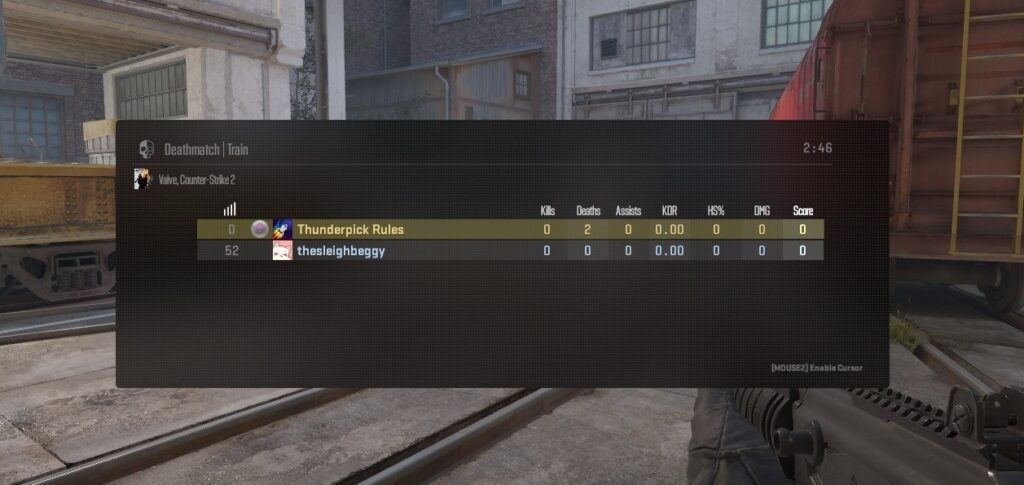
If you’re worried that bots may join and spoil your match, you can open the developer console and type bot_quota. The command will return a value from 0 to 10.
If you enter 0, bots can’t join your game. If you see any other number, open the developer console, type bot_quota 0, and press Enter.
Adding Bots Back To CS2 Matches
If you permanently disabled bots in CS2 matches via the autoexec.cfg with a bot_quota 0 command inside, and a launch command such as +exec autoexec.cfg, the easiest way to let bots back in is to simply remove the launch command.
- Open your Steam Library.
- Right-click on Counter-Strike 2 and select Properties.
- Look for Launch Options on the General tab.
- Remove the +exec autoexec.cfg text.
- Close the tab and launch CS2.
When you add bots back to a CS2 match this way, you avoid deleting or editing the autoexec.cfg file. The process is easily reversible by simply adding the +exec autoexec.cfg launch command back in.
If you didn’t use the above method, you can open the developer console and type in bot_quota 10 to reset to the default values.
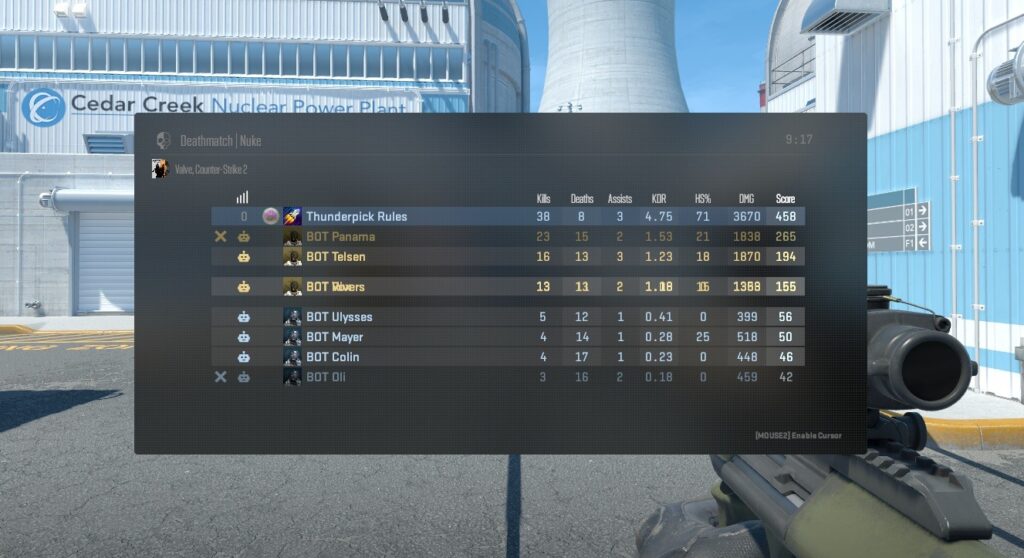
To add one random bot back in, use the bot_add command. Adding one back to a specific side is easy, too; just use the bot_add_t or bot_add_ct commands.
You can go a step further by using the bot_add_t 0 command, where the 0 value indicates an easy difficulty level (values 0-3 available).
FAQs About Bot Removal In CS2
Check out our answers to your most frequently asked questions (FAQs) about removing bots from a CS2 match.
Can I Kick A Specific Bot In CS2?
Yes, you can check a bot’s name by pressing the Tab key. Once you know its name, use the bot_kick [NAME] command. If the bot’s name is “BOB,” you’ll use the bot_kick BOB command via the developer console and press Enter.
What Commands Are Available For Team-Specific Bot Removal?
Use bot_kick t to remove a random bot from the Terrorist side, and bot_kick ct to remove a bot from the Counter-Terrorist side.
How Can Players Prevent Bots From Rejoining A Custom CS2 Game?
Use the bot_quota 0 command to prevent bots from rejoining a custom CS2 game. For a more permanent solution, add the command to an autoexec.cfg file, and run said file via the +exec autoexec.cfg launch option.
How Can Players Disable Bots For 1v1 Matches?
Most 1v1 custom maps already have bots disabled by default. However, if you want to 1v1 via regular deathmatch on default maps, for example, you will want to use the bot_kick command.
Does Removing Bots Improve Gameplay?
Yes, CS2 is primarily a multiplayer experience, enjoyed with other gamers. While AI-controlled opponents can help improve your aim, removing them and playing against real people in custom, practice, or private matches is ideal.
Why Do Bots Keep Returning After Being Kicked?
If bots keep rejoining your game, set the server’s bot quota to 0. Use the bot_quota 0 console command to prevent bots from returning.
Are Bot Removal Commands Applicable In All CS2 Game Modes?
No. The commands in this guide don’t work in official matchmaking. You can only use them in custom maps and practice matches, and on private servers.
Always practice Responsible Gambling and check out our latest promo offers and boosts. T&Cs apply. 18+ to play.